Introducing Ultralytics AutoTrain: Simplify vision AI model training
Train, compare, and improve Ultralytics YOLO models with AutoTrain in Ultralytics Platform, from initial baseline to production deployment.
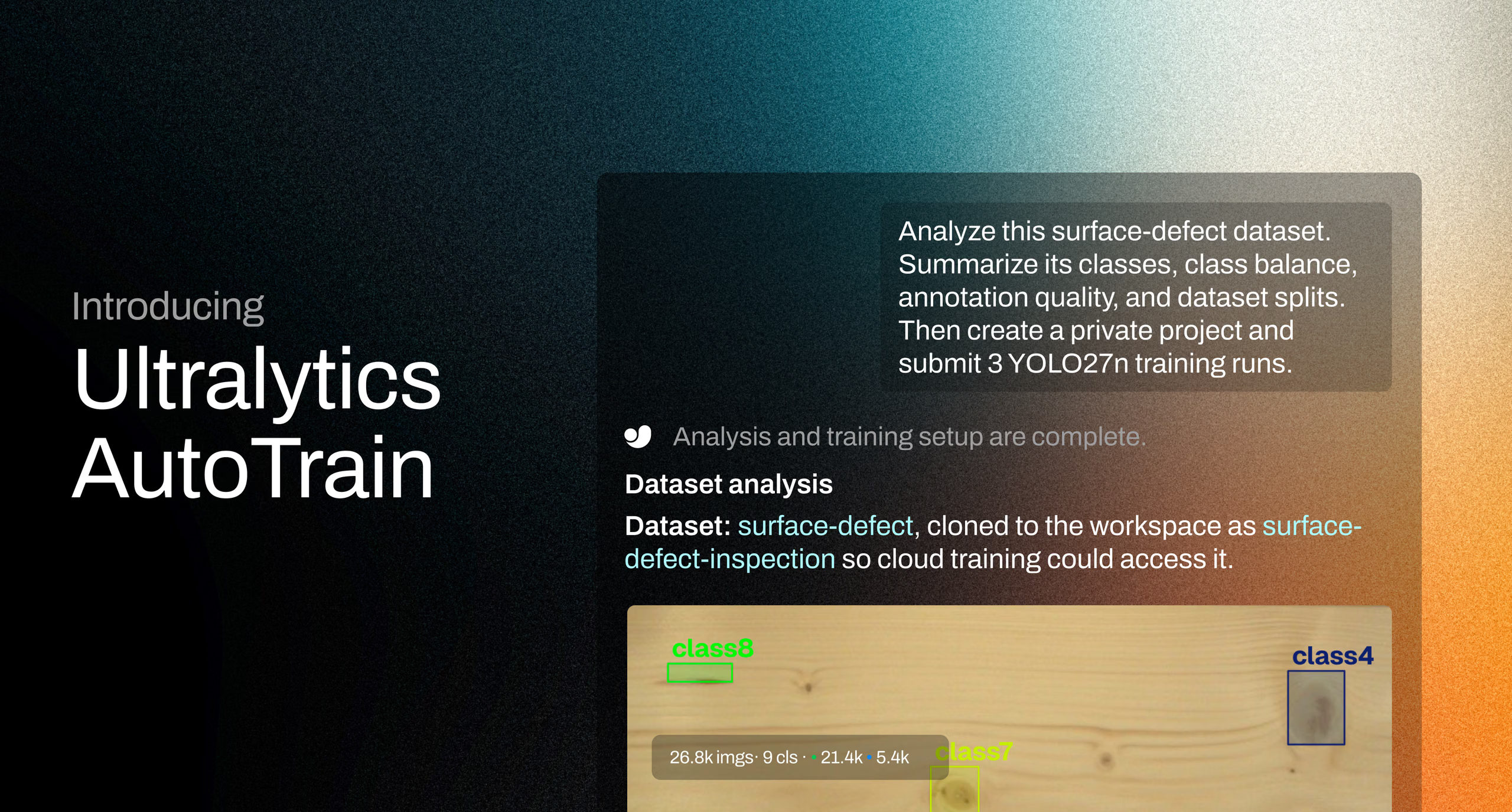
Building a computer vision model is rarely a one-run process. Effective vision AI model training requires teams to establish a baseline, evaluate results, adjust configurations, compare experiments, and repeat, often across disconnected tools.
Today, we’re introducing Ultralytics AutoTrain, a smarter way to train, compare, and improve Ultralytics YOLO models in Ultralytics Platform.
Available through Ask AI, the assistant turns natural-language requests into actions across your model-development workflow. You can ask it to establish a baseline, run controlled experiments, interpret results, and export or deploy your selected model.
What is Ultralytics AutoTrain?#
Computer vision teams should spend their time improving real-world outcomes, not repeatedly configuring runs or piecing together experiment results.
With AutoTrain, you can:
- Start faster: Create a baseline without configuring every training setting manually.
- Make informed decisions: Compare models using validation metrics and understand why results differ.
- Improve systematically: Test variables such as model size or image resolution through controlled experiments.
- Reduce workflow overhead: Keep datasets, training runs, metrics, exports, and deployments connected.
- Accelerate production: Export or deploy the best-performing model directly from the same workflow.
Instead of asking, “Which configuration should we try next?” teams can focus on the more valuable question: “Is this model ready to solve our problem?”
Built around your objective#
AutoTrain adapts to the way you work.
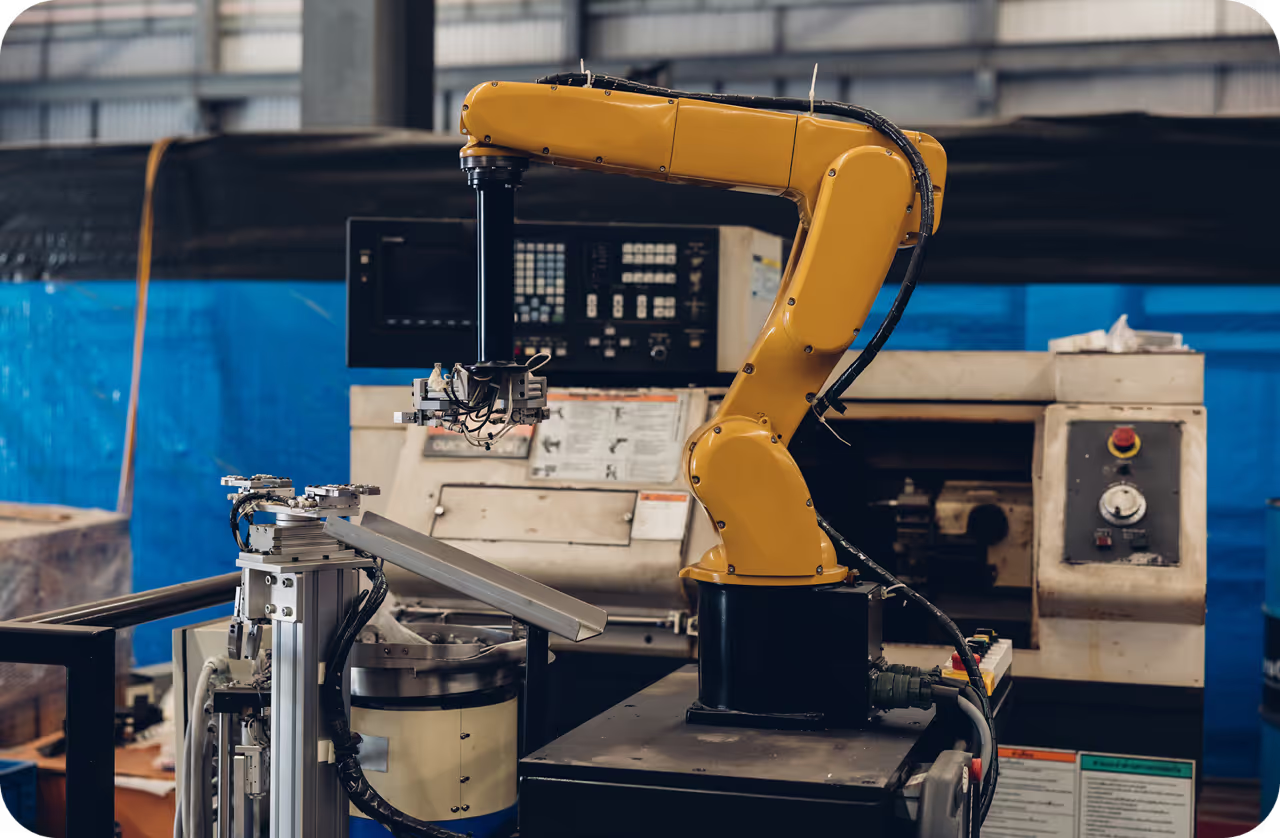
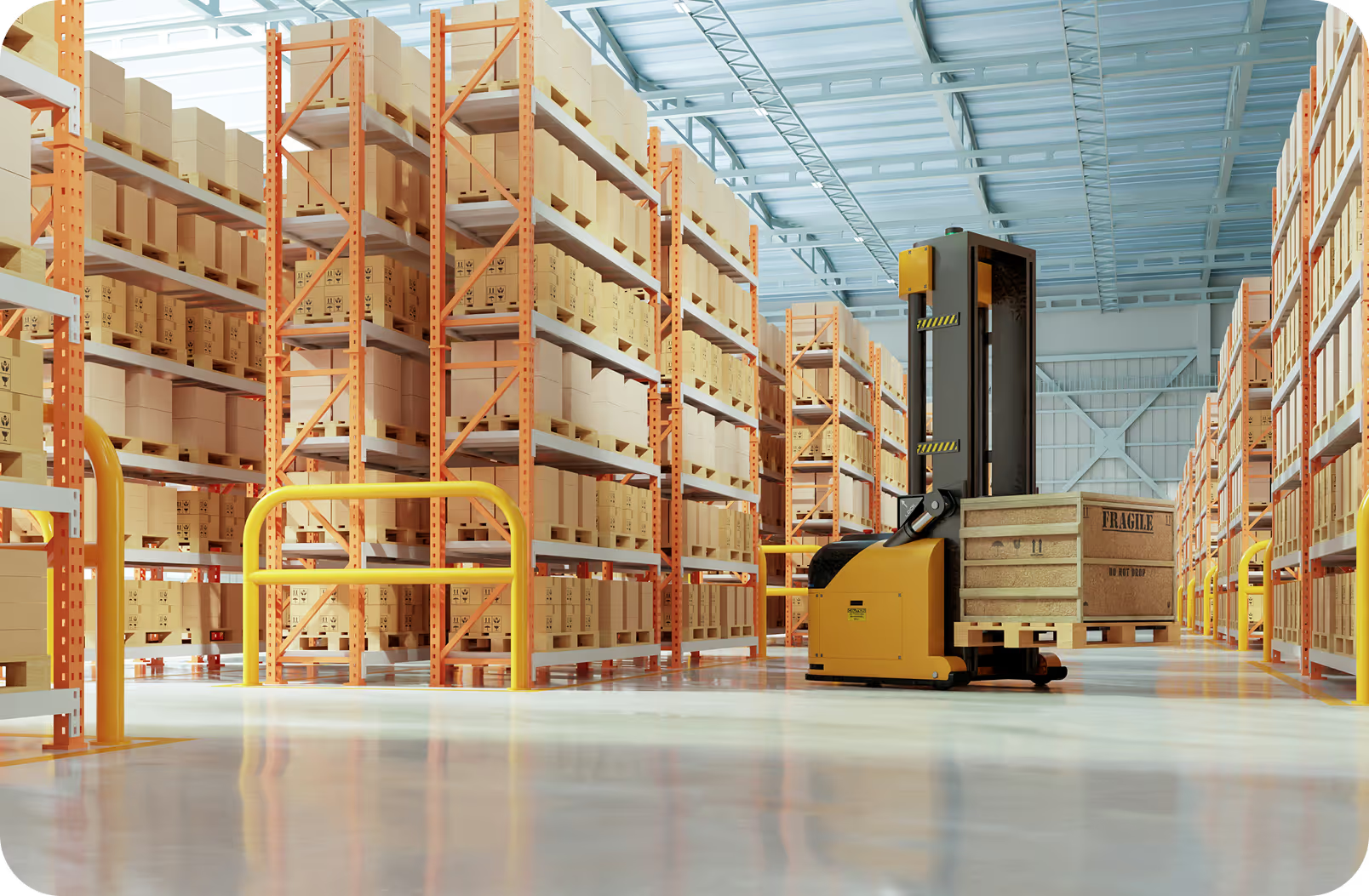
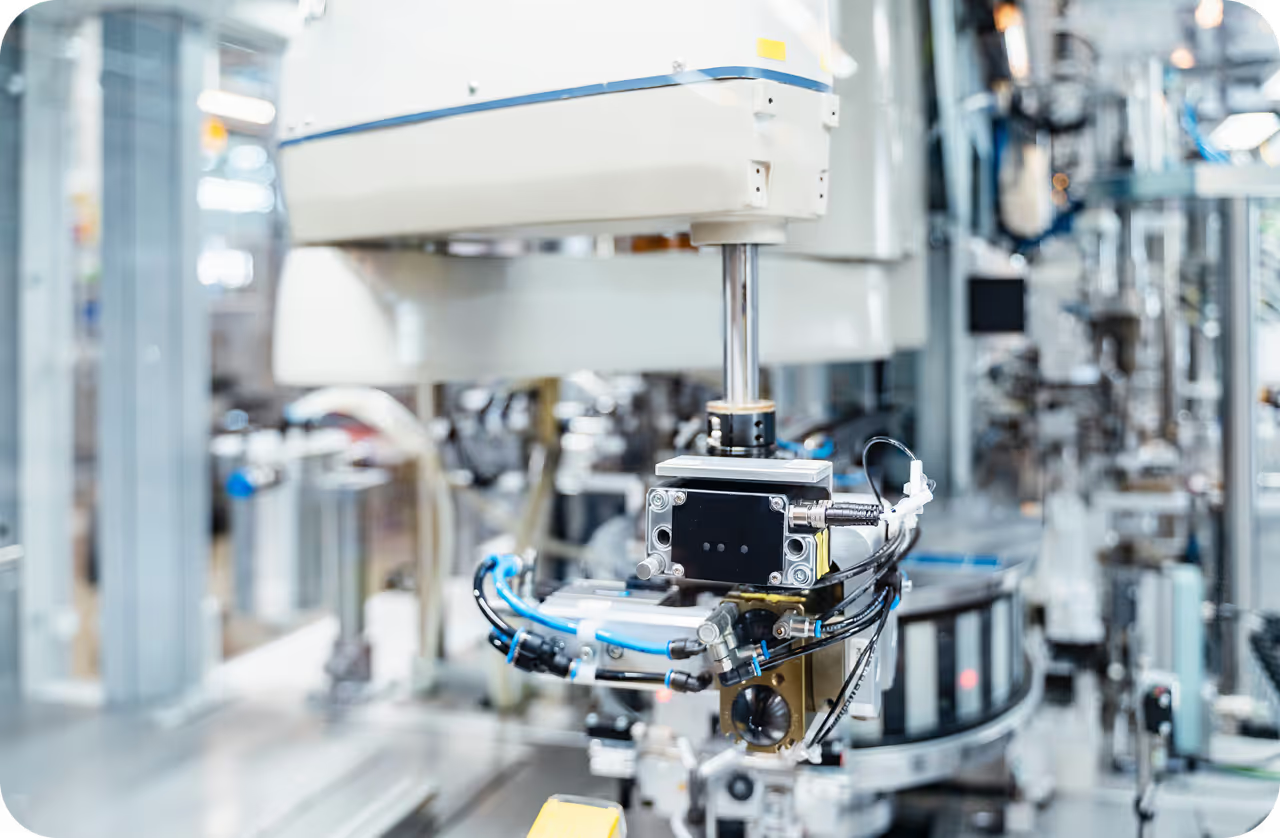
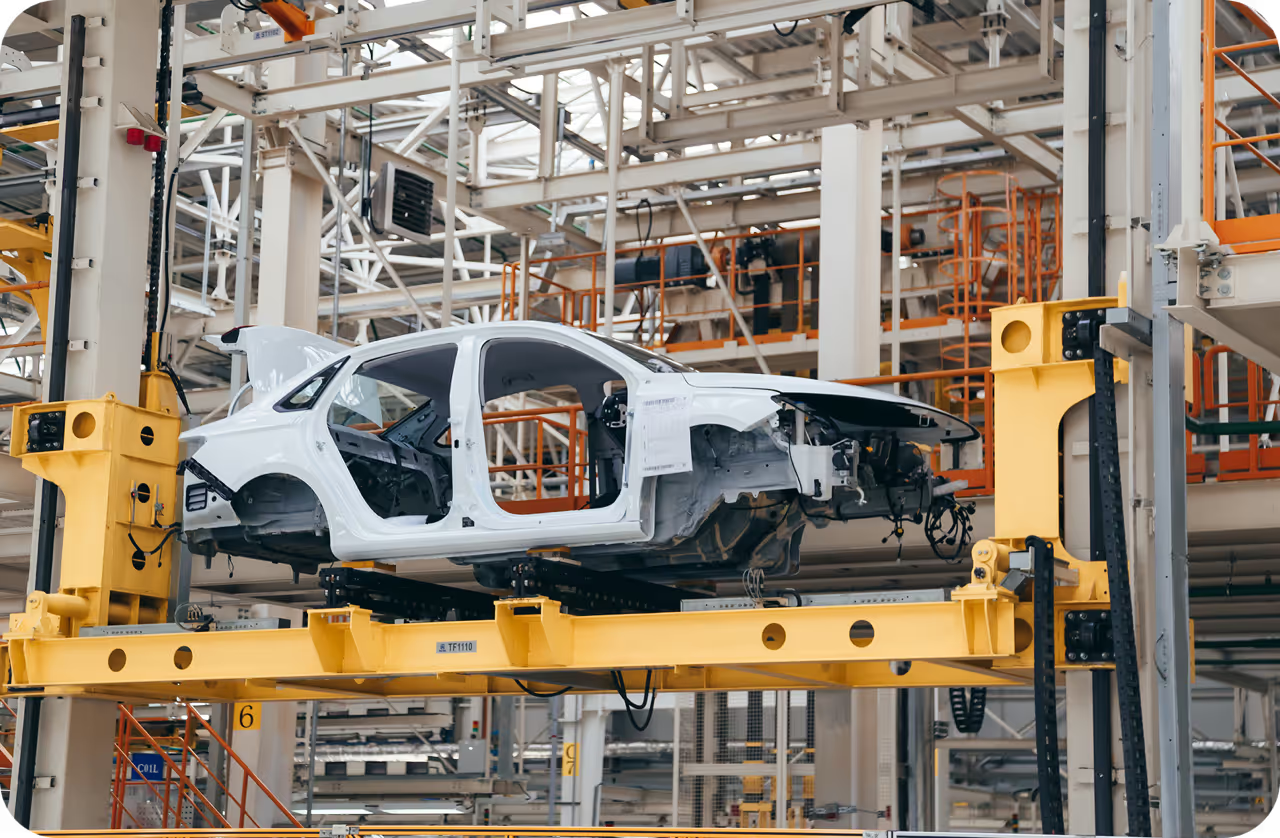
A team developing a manufacturing inspection system could ask it to establish a defect-detection baseline and compare image resolutions. A logistics company could evaluate which model best identifies containers and equipment. A developer building a retail application could compare completed models, identify difficult classes, and plan the next experiment.
You define the objective, limits, and compute budget. AutoTrain helps execute the workflow and turn results into clear next steps.
One connected path from data to deployment#
AutoTrain is part of the wider Ultralytics Platform, where teams can manage datasets, annotate images, train models, review experiments, export artifacts, and deploy endpoints.
The Ask AI assistant can also support surrounding tasks, including auto-annotating unlabeled images with a compatible model, exporting a selected model to formats such as ONNX, and initiating a deployment.
That means fewer handoffs between systems, and a more direct path from visual data to a working vision AI application.
Put AutoTrain to work across your vision AI workflow#
AutoTrain helps teams move beyond one-off training runs to a faster, more structured experimentation workflow. Use it to test configurations, compare results, understand performance differences, and move your strongest model toward production—all within Ultralytics Platform.
For example, you might ask AutoTrain to:
- Test an approach: “Train three models at image sizes 640, 800, and 960 while keeping the dataset splits and other settings fixed.”
- Turn results into next steps: “Compare the completed models by validation mAP50-95, explain the performance differences, and recommend the next experiment.”
- Move toward production: “Deploy the best-performing completed model and provide its endpoint status.”
These requests do more than initiate actions. They help teams make informed decisions throughout model development, reducing manual coordination and creating a clearer path from an initial baseline to a production-ready vision AI model.
Start building with AutoTrain#
Whether you’re training your first model or optimizing a production candidate, AutoTrain helps you experiment with greater speed, structure, and confidence.
Sign in to Ultralytics Platform, open your dataset or project, and select Ask AI to get started. Explore additional prompts and example workflows in the AutoTrain documentation.