How to migrate Ultralytics YOLO models from W&B to Ultralytics Platform
Import Ultralytics YOLO models from Weights & Biases (W&B) into Ultralytics Platform without retraining, then compare experiments, export, and deploy.

In computer vision projects, training a model is only one part of the workflow. As your experiments grow in number, you also need to manage model versions, track training metrics, compare results, and put trained models to work in real-world applications.
Weights & Biases (W&B) is a widely used experiment tracking tool in machine learning. If you work with Ultralytics YOLO, you may already use W&B to record training metrics such as loss, mAP, precision, and recall, manage model weights, and visualize experiment performance.
As your projects move from experimentation to deployment, you may want to manage models, evaluate their performance, export them, and deploy them in one place.
Ultralytics Platform can import eligible Ultralytics YOLO model checkpoints and their training records directly from W&B. You don't need to retrain anything: once your models are imported, you can test inference, export them, and deploy them.
This guide covers how to prepare your models and training records, import models through the W&B integration, upload checkpoints manually, and track future training runs in Ultralytics Platform.
Before you migrate: review your existing models and training data#
In W&B, a training experiment typically corresponds to a run, and multiple runs can be organized under a project. Model weights and other training outputs can be stored and versioned as artifacts.
Before migrating your Ultralytics YOLO models, check the following:
- Model weights: Files such as
best.pt, which store the best-performing checkpoint from training. - Training configuration: Parameters such as learning rate, number of epochs, and image size.
- Training metrics: Metrics such as loss, mAP, precision, and recall.
- Training history: Experiment records and the metrics logged at each epoch.
What can Ultralytics Platform import?#
Through the official W&B integration, Ultralytics Platform can access eligible model artifacts and read the information stored in their checkpoints.
| Data type | Import support |
|---|---|
Ultralytics YOLO model weights (best.pt) | Supported |
| Model architecture, task type, and metadata | Supported |
| Training configuration stored in the checkpoint | Supported |
| Saved training metrics | Supported |
| Training curves from the W&B run history | Retrieved when needed and available |
| Original datasets and annotation files | Not migrated automatically |
| W&B-specific content such as sweeps and reports | Not included in automatic imports |
How much training history carries over depends on the original model files and the data stored in W&B. If a checkpoint doesn't contain epoch-by-epoch training metrics, Ultralytics Platform tries to retrieve the training curves from the W&B run history. We recommend backing up important model files and experiment data before you start.
Import Ultralytics YOLO models through the W&B integration#
If your W&B project already contains an Ultralytics YOLO model's best.pt checkpoint, you can use the built-in W&B integration in Ultralytics Platform. You can complete the import in your browser, so you don't need to download and re-upload each model by hand.
Step 1: Sign in to Ultralytics Platform#
Open Ultralytics Platform and sign in, then switch to the workspace where you want to import your models.
You need the editor role or higher in that workspace to import models. Imported models count toward the workspace's storage and model limits. W&B imports are available on every plan.
Step 2: Open the W&B integration#
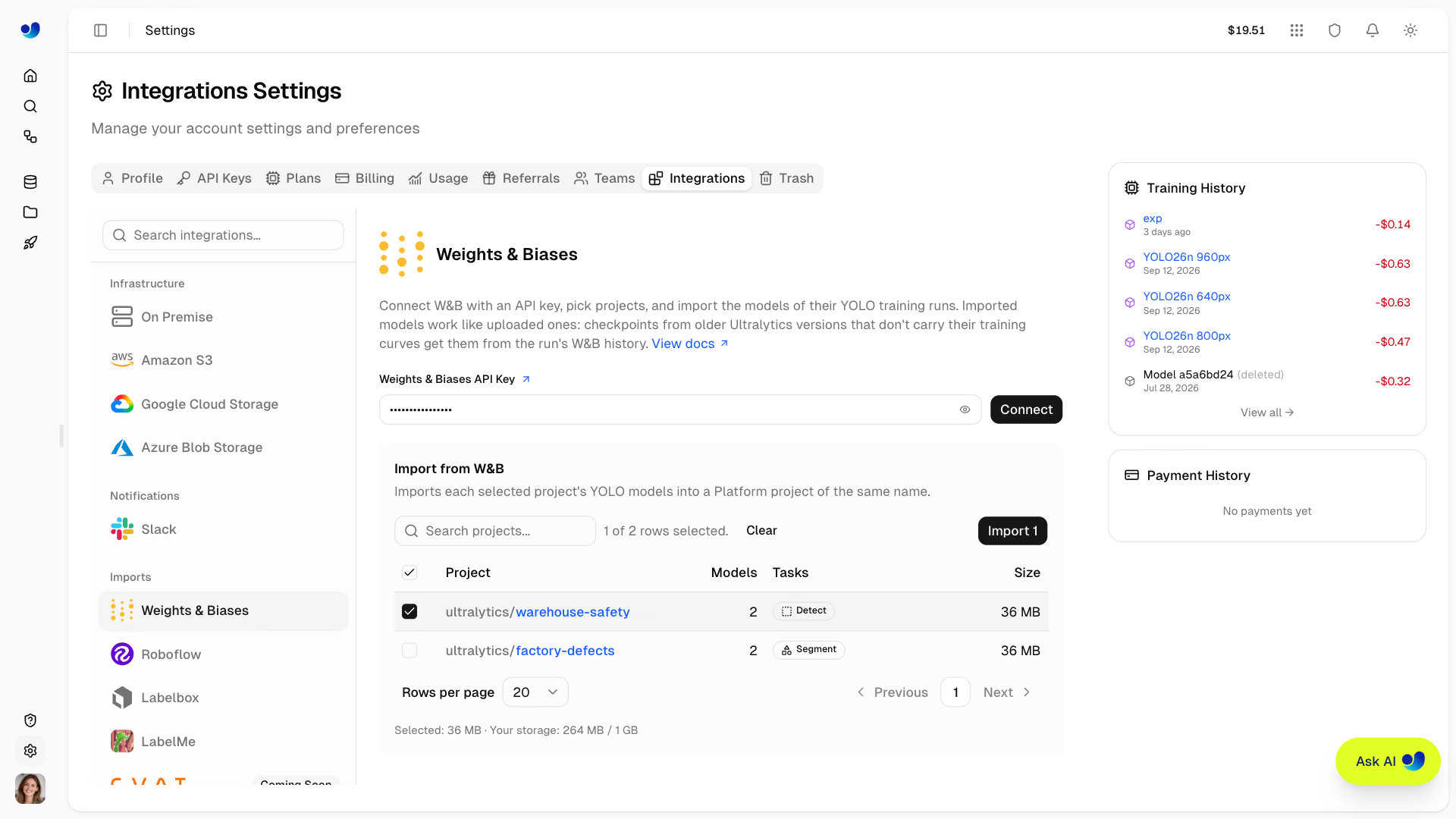
In Ultralytics Platform, go to Settings → Integrations → Weights & Biases. This is where you import existing Ultralytics YOLO models from W&B.
Step 3: Connect your W&B account#
Get your API key from the W&B authorization page. Return to Ultralytics Platform, paste the key, and click Connect.
Once connected, Ultralytics Platform shows the W&B projects your key can access, including your own projects and your teams' projects, along with the models available for import. Make sure your API key has permission to read the projects you want to migrate.
Security note: API keys are sensitive credentials. Don't commit them to public code repositories or share them with other people.
When the workspace owner connects with a W&B API key, Ultralytics Platform stores it encrypted and reuses it for future imports in that workspace, so you won't need to enter it again. Only the owner can add, replace, or remove the saved key. A key entered by any other workspace member is used for that import only.
Step 4: Select the projects to import#
After you connect, the list shows the W&B projects that your API key can access and that contain model artifacts. Wait for the model details to load, then select the projects you want to migrate.
Ultralytics Platform imports by project: it tries to import every eligible model in each project you select. A model is eligible when:
- Its W&B run contains a model artifact with a
best.ptcheckpoint. - Its task type is supported by Ultralytics Platform.
- Its checkpoint is within the 1 GB model upload limit.
Projects without any eligible models can't be selected.
Step 5: Start the import#
After selecting your projects, click Import N, where N is the number of projects you selected. Ultralytics Platform starts importing the eligible models and shows their progress in the background upload tracker.
Keep the browser tab open until the uploads finish. You can keep navigating within Ultralytics Platform while they run.
Step 6: Review the imported models#
When the import finishes, open the corresponding project and select a model to see its details. Each W&B project is imported into an Ultralytics Platform project with the same name, which is created if it doesn't already exist.
For each imported model, you can view the available information, such as its architecture, task type, class names, training configuration, and training metrics. If the original checkpoint doesn't include epoch-by-epoch results, Ultralytics Platform also tries to retrieve them from the W&B run history.
Your existing Ultralytics YOLO models are now ready to manage, test, and use in Ultralytics Platform.
Alternative: upload existing model weights manually#
If your model is saved locally, you can upload it directly to Ultralytics Platform.
After you train an Ultralytics YOLO model for object detection, the output directory typically looks like this:
runs/
└── detect/
    └── train/
        └── weights/
            ├── best.pt
            └── last.pt
The best.pt file contains the best-performing checkpoint from training and is the one most commonly used for inference and deployment.
In Ultralytics Platform, open the target project. Drag and drop the .pt file onto the project page or the models sidebar, or click Upload models and select a local file. When the upload finishes, Ultralytics Platform automatically reads the supported model metadata, such as the task, architecture, and class names.
To check that your model loads correctly before you upload it, you can run a quick prediction with the Ultralytics Python package:
from ultralytics import YOLO

# Load the local model
model = YOLO("best.pt")

# Run inference
results = model.predict(
    source="test.jpg",
    conf=0.25,
)

print(results)
Replace the example paths with the paths to your model weights and a test image.
Note that a manual upload can't restore training history that wasn't saved in the original checkpoint.
Once your existing models are in place, you can also send future Ultralytics YOLO training runs straight to Ultralytics Platform.
Track new training runs in Ultralytics Platform#
The following example uses Ultralytics YOLO26 to show how to train a model on your own machine while streaming training metrics to Ultralytics Platform.
Step 1: Install or update Ultralytics#
pip install -U ultralyticsStreaming local training metrics to Ultralytics Platform requires:
- Python 3.11 or later
ultralytics8.4.120 or later
If you've been tracking experiments with W&B and want future runs to report only to Ultralytics Platform, you can turn off W&B logging:
yolo settings wandb=FalseThis doesn't delete any experiment data already stored in W&B.
Step 2: Set up your Ultralytics Platform API key#
In Ultralytics Platform, go to Settings → API Keys. The workspace owner can create a key for training: click Add Key, select Ultralytics, enter a name, and click Create Key.
On Linux or macOS, set it as an environment variable:
export ULTRALYTICS_API_KEY="YOUR_API_KEY"Replace YOUR_API_KEY with your key, and keep it out of public code repositories.
Step 3: Train YOLO26#
This example trains YOLO26n on the COCO8 sample dataset:
yolo train \
  model=yolo26n.pt \
  data=coco8.yaml \
  epochs=5 \
  project=your-username/my-project \
  name=experiment-1
Here's what each argument does:
model: The model to train.data: The dataset configuration.epochs: The number of training epochs.project: The target project in Ultralytics Platform, inusername/projectformat.name: The name of this experiment.
Replace your-username/my-project with your workspace username and project name.
You can do the same with the Python API:
from ultralytics import YOLO

model = YOLO("yolo26n.pt")

model.train(
    data="coco8.yaml",
    epochs=5,
    project="your-username/my-project",
    name="experiment-1",
)
Once training starts, supported metrics stream to Ultralytics Platform in real time.
For an even simpler setup, open the Local Training tab in the Ultralytics Platform training dialog and copy the generated command, which already includes your API key.
Step 4: View your training results#
Open the Train tab for the model to see what was recorded during training, including:
- Training and validation loss
- Model metrics such as precision, recall, and mAP
- Learning rate over time
- Validation plots, when available
- Console logs
- System resources, including GPU, CPU, and memory usage
Use these records to analyze training and compare performance across configurations and model sizes.
What you can do after migrating#
Once your models are in Ultralytics Platform, you can test, export, compare, and deploy them.
Test models in the browser#
Open the Predict tab on a model's page, upload an image, and see the model's predictions right away.
Export models to different formats#
Ultralytics Platform can export models to a range of deployment formats, including ONNX, TensorRT, and CoreML. Choose a format based on your model's task and the hardware you're deploying to.
Compare experiments within a project#
You can compare experiments directly on the project page. Here's how W&B concepts map to Ultralytics Platform:
| W&B | Ultralytics Platform |
|---|---|
| Project | Project |
| Run | Model |
| Workspace panels with overlaid curves from multiple runs | Charts on the project page |
| Runs table | Table view on the project page |
Models imported from the same W&B project land in the same Ultralytics Platform project, so you can compare their available training results once the import finishes.
Chart comparison#
Select the models you want to compare from the model list on the left. The panel on the right shows their curves overlaid and grouped into categories such as Metrics, Loss, and Learning Rate. Depending on the task and the data available, these include mAP50-95, precision, recall, and the individual training and validation losses. Hover over a curve to see exact values, use the legend to show or hide a model, and click and drag to zoom in on a region.
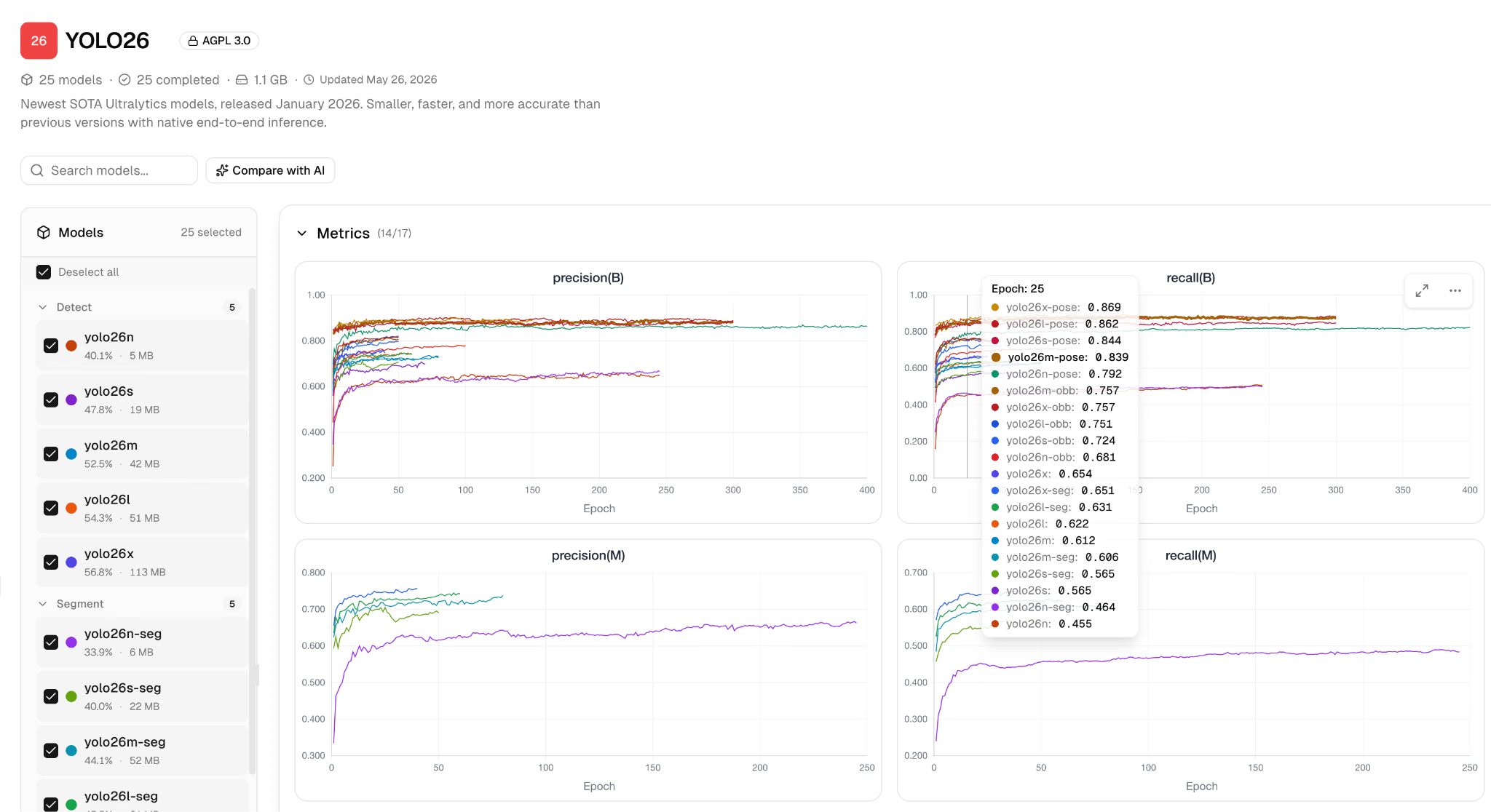
Table comparison#
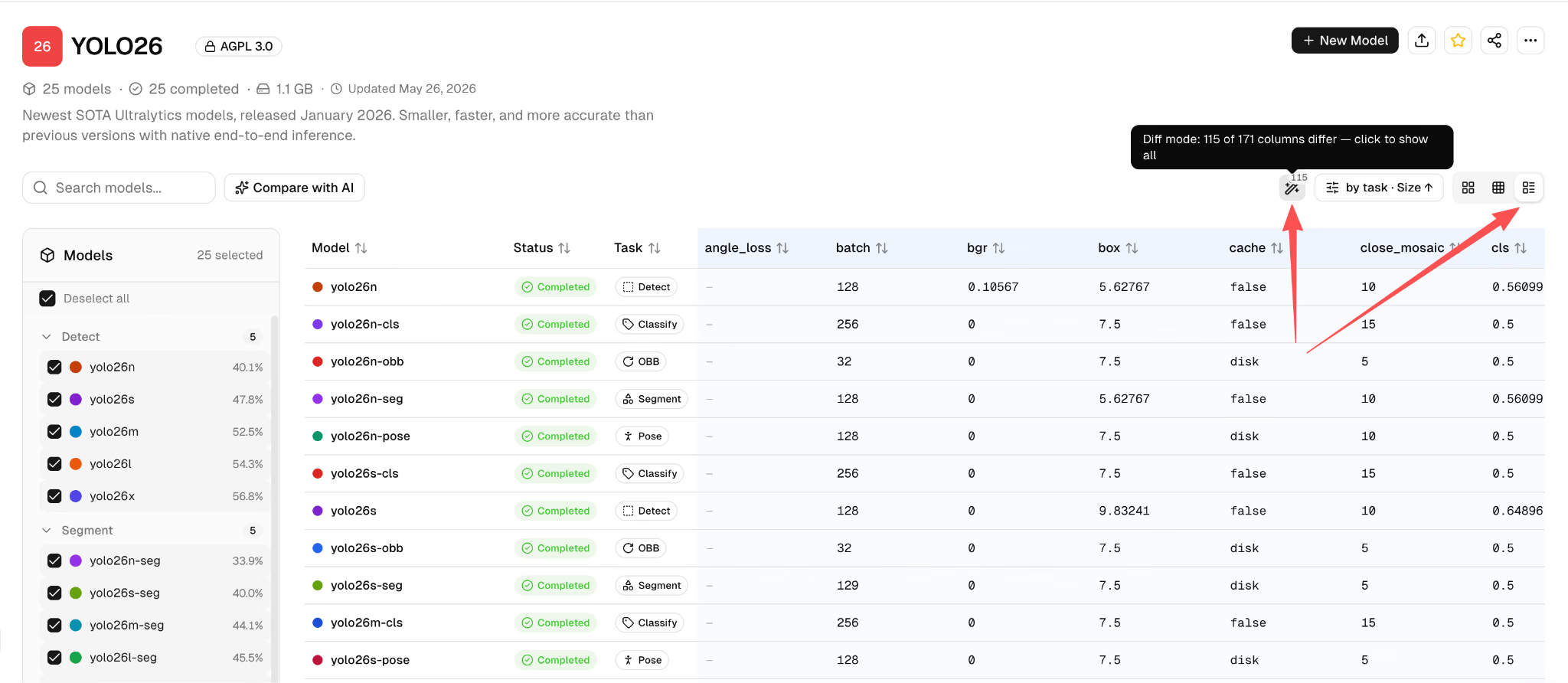
Switch to the Table view to compare the selected models' training parameters and final metrics side by side. Turn on Diff to show only the columns whose values differ between models, which makes it easier to spot the hyperparameters that may have affected your results.
Keep building your computer vision projects#
Ultralytics Platform also covers dataset management, annotation, cloud GPU training, model management, and model deployment, so you can bring more of your workflow into one place as your projects grow.
Frequently asked questions
Usually not. If you have an eligible
best.ptcheckpoint, you can import it directly into Ultralytics Platform without retraining. You can also upload locally saved Ultralytics YOLO checkpoints manually.Yes. You can select a whole project, and Ultralytics Platform imports every eligible model in it. Original datasets, reports, and sweep configurations aren't copied.
Check that the run has a model artifact containing
best.pt, that the model's task is supported, that the checkpoint is no larger than 1 GB, and that your API key can read the project. A W&B project whose name resolves to the reserved project namedeploycan't be imported directly. Download its checkpoints from W&B and upload them to another Ultralytics Platform project instead. If the destination project is in Trash, restore it or permanently delete it before you retry.That depends on the original data. Ultralytics Platform uses the epoch-by-epoch results saved in the checkpoint. If those aren't there, which is common with checkpoints from older Ultralytics versions, it tries to retrieve the curves from the W&B run history. Metrics that were never logged, or that can't be accessed, can't be recovered.
Each import creates new model records rather than overwriting existing ones. If a model name already exists, Ultralytics Platform adds a numeric suffix.
Yes. Ultralytics continues to support its official W&B integration, so you can choose the experiment tracking tool that best fits your projects. For a walkthrough of tracking YOLO training in W&B, see Supercharging Ultralytics with Weights & Biases.
Bring your W&B experiments into Ultralytics Platform#
With the built-in W&B integration, you can import eligible Ultralytics YOLO checkpoints and their available training records into Ultralytics Platform without retraining. Locally saved checkpoints can be uploaded manually.
From there, you can track new training runs, compare model performance, run inference, export your models, and deploy them, all in one place.