How to Turn YOLO Detections into Alerts Without Code Using Ultralytics Agents
Turn Ultralytics YOLO detections into Slack alerts, webhooks and dataset captures without code, using a Gate condition in Ultralytics Agents.
 Miles Deans10 min read
Listen to this article
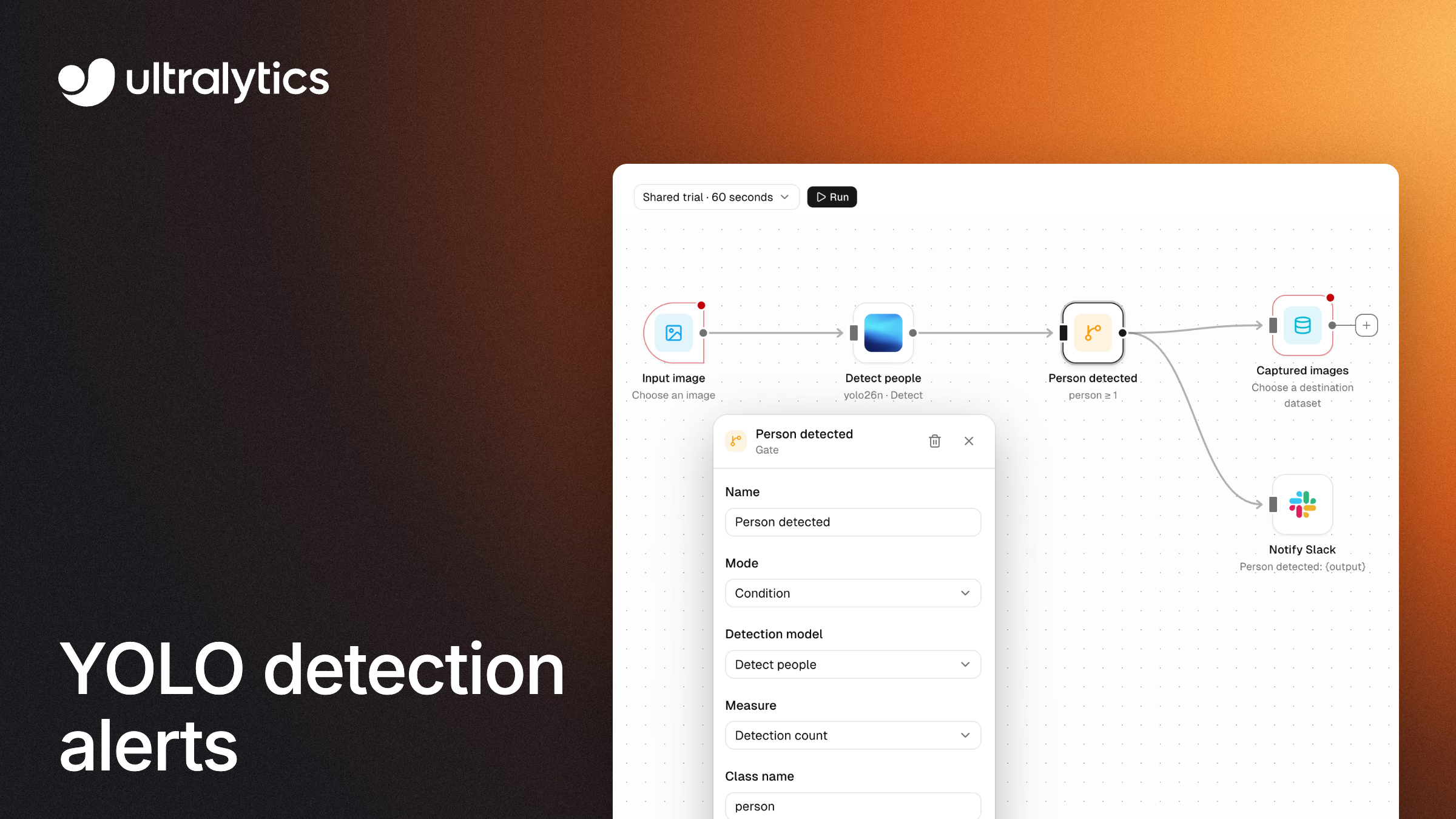
You can turn Ultralytics YOLO detections into alerts without writing code by building a visual workflow in Ultralytics Agents, part of Ultralytics Platform. Connect an image to a YOLO model, add a Gate that checks what the model found, and branch the result to a Slack message, a webhook or a dataset. This guide builds that workflow step by step from the Capture and Alert template, then extends it to chain a second model, save it, rerun it on new images and export it as Python.
What you'll build#
The finished workflow checks an image with a YOLO26 model and, only when a person is detected, does three things from the same condition:
- Sends a Slack message to your connected channel, including the detection result.
- Posts a JSON webhook to a public HTTPS endpoint configured to accept your chosen JSON body, such as a ticketing tool or an internal service.
- Saves the image to a dataset so you can label it later and retrain your model.
Agents connects images, models, conditions and actions as blocks on a canvas, and it is available to every signed-in Ultralytics Platform user in personal and team workspaces (Agents documentation). Workflows run when you click Run on a selected image, video or dataset; they are not a continuous camera-monitoring service. For an overview of what Agents is and why we built it, read Introducing Ultralytics Agents.
This guide uses Image → YOLO → Gate, with the Gate branching to Slack, Webhook and a destination Dataset. For the full block reference and other workflow patterns, see the Agents documentation.
Step 1: Load the Capture and Alert template#
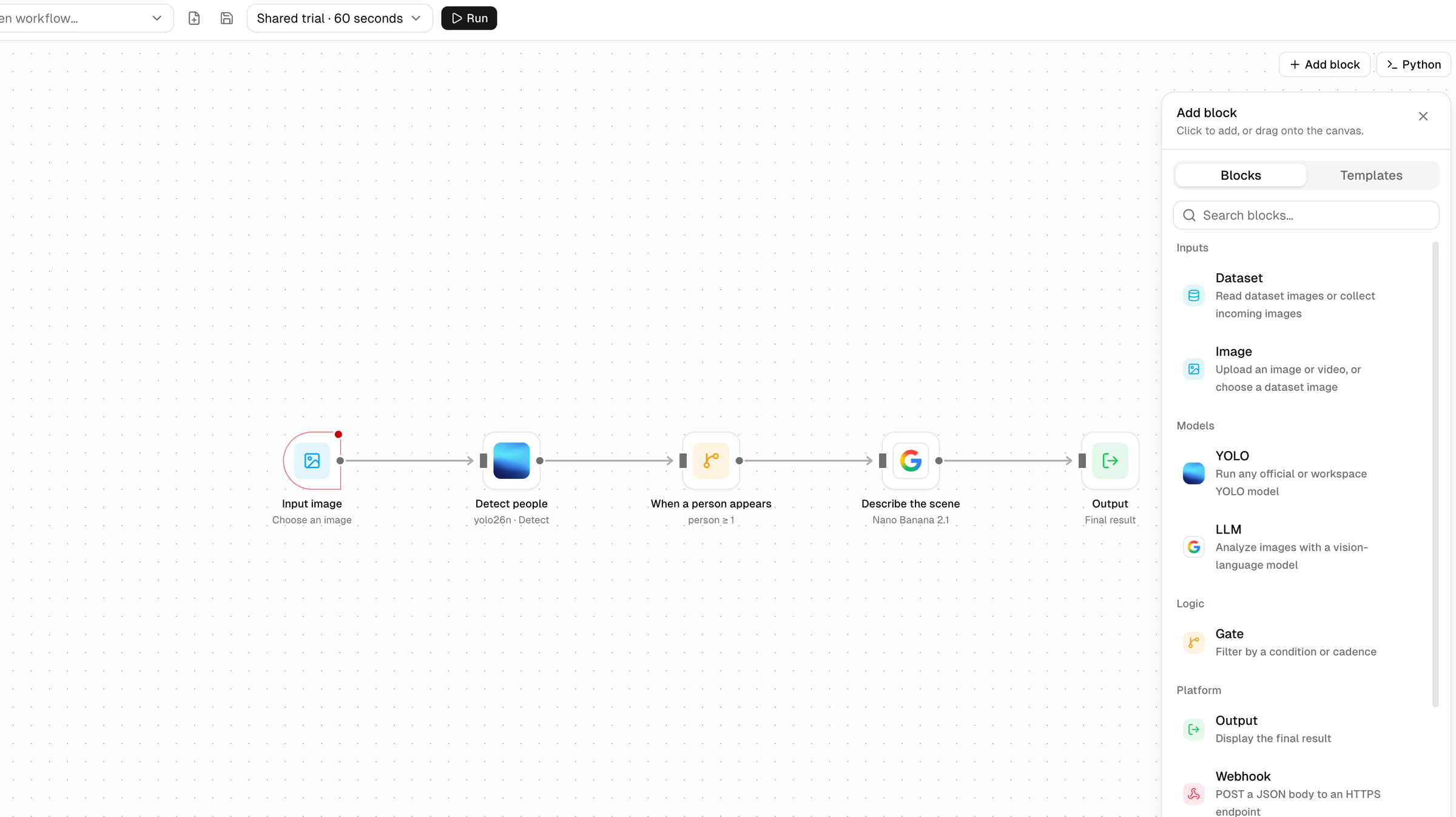
Open Agents in the Platform sidebar, click Add block, switch to Templates and choose Capture and Alert. Loading a template replaces the blocks on the current canvas, and Platform asks you to confirm first.
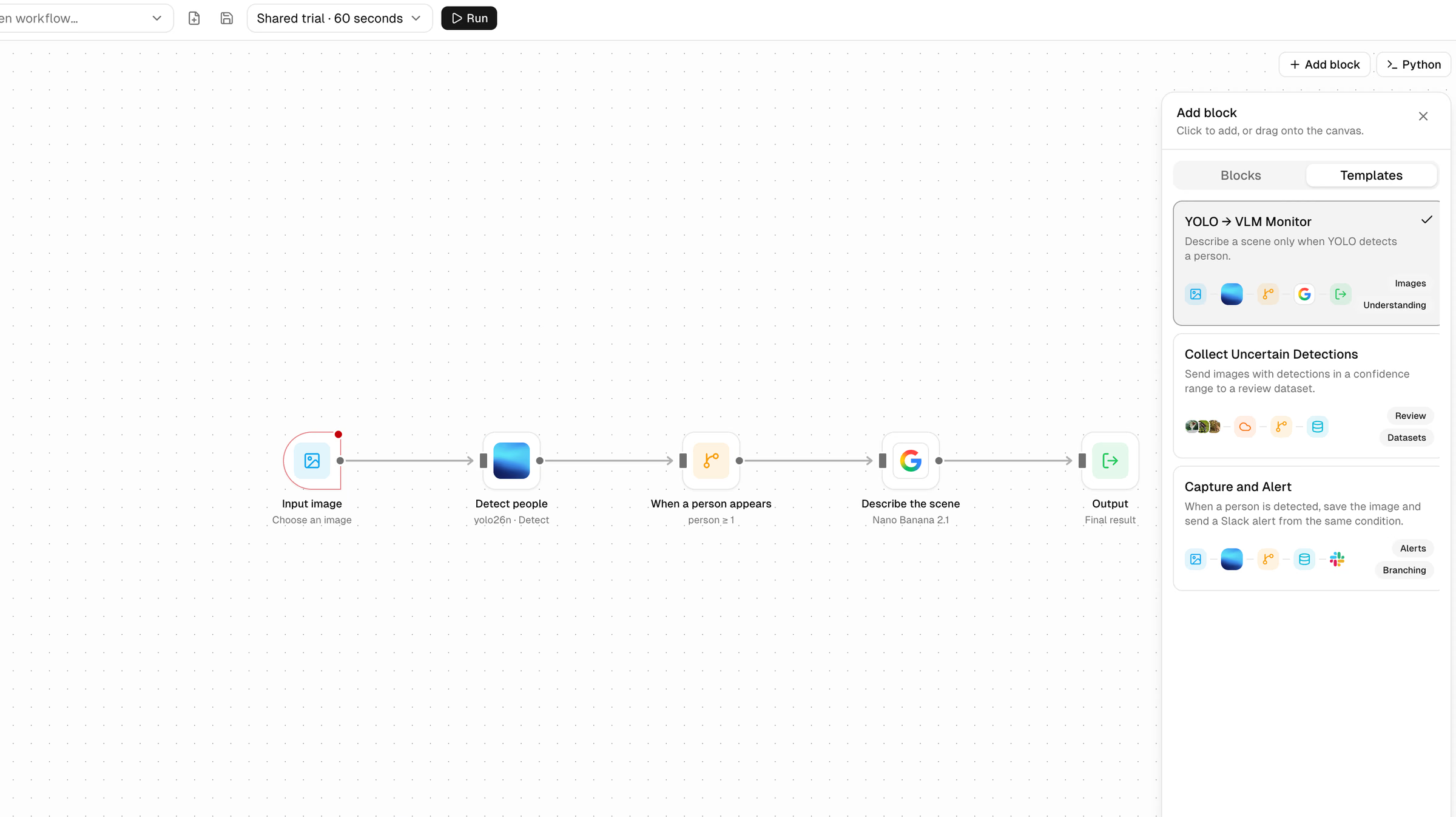
Capture and Alert already connects the person-detection condition to dataset capture and Slack; you'll configure those destinations and add a webhook branch below. The other templates, YOLO → VLM Monitor and Collect Uncertain Detections, are editable starting points for describing scenes and building review datasets.
Step 2: Choose the input image#
Select the Input image block and choose one image containing a person, either by uploading it or selecting it from an uploaded dataset. For this first shared-trial run, use an image of up to 4 megapixels. Uploaded files stay in your browser until you run the workflow and clear if you refresh the page. To process multiple images, replace the Image block with a Dataset block, select the source dataset and split, set its input limit, and connect it to the YOLO block.
Step 3: Pick the YOLO model and confidence#
Select the Detect people block. The template uses YOLO26 nano (yolo26n), which is the model the shared trial runs. To use another official YOLO model or a model trained in your workspace, such as a custom defect or PPE detector, select it under Model in this block and choose a dedicated deployment for workflow execution in Step 7. The Minimum detection confidence setting discards weaker detections before any condition runs, so lower it if you want the workflow to react to less certain detections.
Step 4: Set the condition in the Gate block#
The Gate block decides whether anything downstream runs. In Capture and Alert, select the Person detected block and confirm its settings:
- Mode: Condition
- Detection model: Detect people
- Measure: Detection count
- Class name: person
- Condition: Greater than or equal
- Compare with: 1
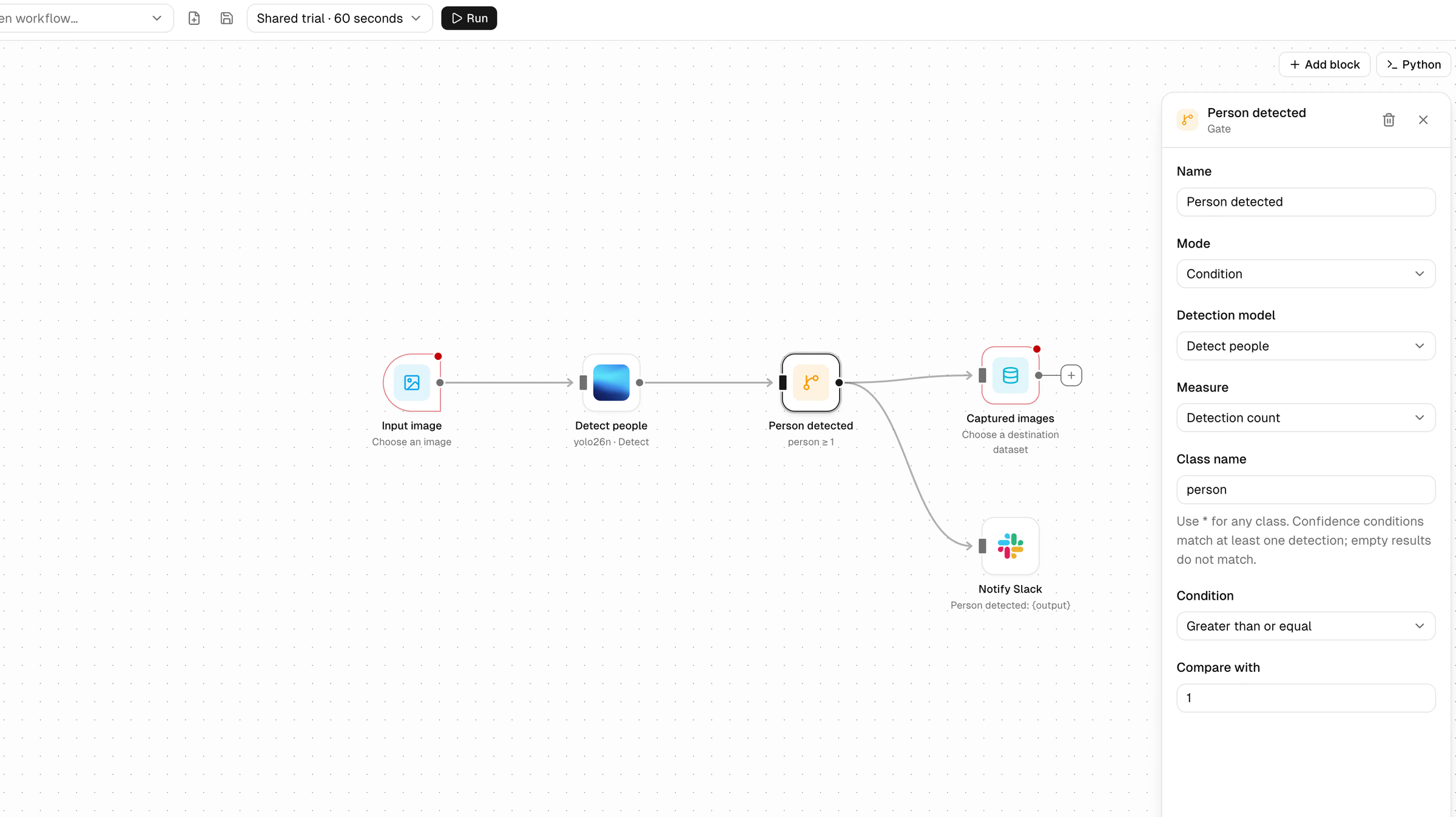
Change the class name to match your model's classes, or use * for any class. You can also measure detection confidence instead of count; set the YOLO block's minimum confidence low enough to keep the detections you want to evaluate. Confidence conditions pass when at least one detection matches, so an image with scores of 0.3 and 0.9 passes a 0.25 to 0.5 range, and images with no detections never pass a confidence condition. When a condition does not match, its connected actions do not run for that image.
Step 5: Configure Slack and the webhook#
Slack. Connect Slack once in Settings > Integrations (a workspace admin or owner does this in team workspaces), then edit the Notify Slack block's message. Use {output} to include the upstream result, as in the template's Person detected: {output}. These workflow messages are separate from Platform's training and deployment notifications (Slack integration docs).
Webhook. Click Add block, choose Webhook from the Blocks tab, and connect the output of Person detected to it, keeping the existing Slack and dataset connections. Enter a public HTTPS destination URL configured to accept your JSON body, such as {"text": "{output}"}. Platform sends one POST per result with Content-Type: application/json. The body can be up to 10,000 characters, redirects are not followed, the connection times out after 5 seconds, and a non-2xx response fails the block. The Webhook block is terminal, so it does not pass results further down the workflow.
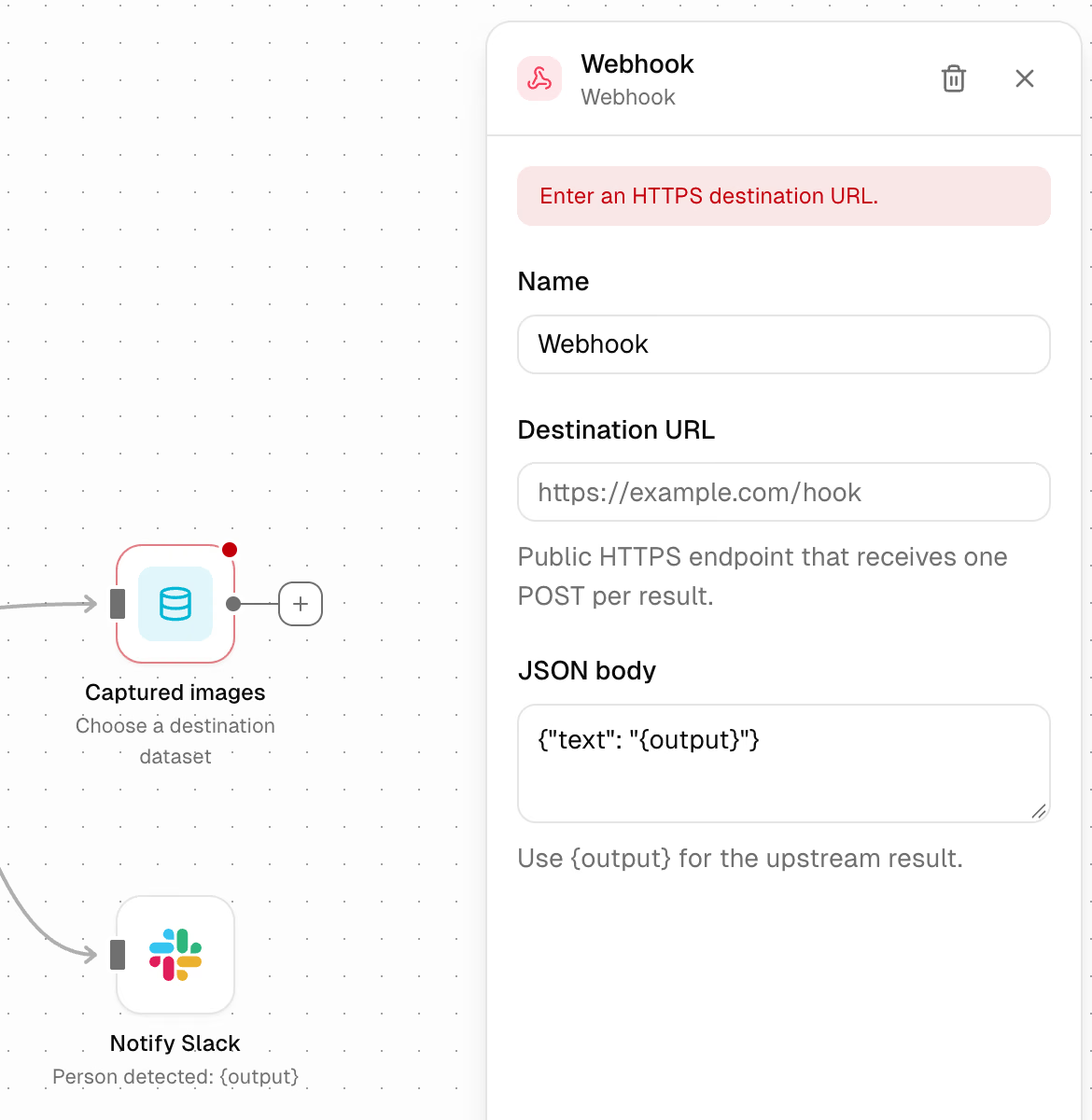
One Gate output can connect to several blocks at once, so Slack, the webhook and the dataset all use the same evaluated condition. A failed block shows a red outline.
Step 6: Keep matching images for retraining#
Select the Captured images block and choose an existing dataset you can edit, creating one first if needed using the dataset creation guide. Connected cloud-storage and on-premise datasets cannot be used as destinations, and normal dataset storage quotas apply. Matching images are added to the dataset's training split without labels, and images already in the dataset are skipped. Open the dataset in the annotation editor to review and label the collected images, then use them in your next Platform training run.
Step 7: Run, save and rerun on new images#
Choose where to run next to the Run button:
| Option | Use it for | Limits |
|---|---|---|
| Shared trial · 60 seconds | Trying a small workflow | Up to 60 seconds, 20 input images of up to 4 megapixels each, 20 model or provider calls, and three runs per minute; one local YOLO model, using the official YOLO26 nano model |
| Existing dedicated deployment | Larger datasets and longer runs | Uses that deployment's hardware and pricing, with no overall workflow duration or image-count cap; existing deployment and provider limits still apply |
| New deployment | Creating dedicated hardware from the builder | Opens the deployment creation and pricing dialog; wait until the deployment is ready before running |
A workflow can have up to 20 blocks. Slack and webhook actions count as model or provider calls, and branching can increase the number of calls per image. While a run is active, blocks show progress, and you can click Stop to cancel it.
With your input and destinations configured, click Run. Inspect the block results, then check the connected Slack channel, your webhook receiver and the destination dataset. If no actions run, check whether YOLO detected a person and whether the Gate condition matched; a condition that does not match leaves its connected actions unexecuted.
Click Save workflow to name the workflow and reopen it later from Open workflow. To rerun it on new data, open the saved workflow, select new images or a different dataset, and click Run again. Saving does not schedule runs.
Step 8: Chain a second model#
To answer "what is happening?" as well as "is there a person?", add an LLM block, connect the Gate to it, and connect the LLM to a new Output block, following the pattern of the YOLO → VLM Monitor template. The Gate evaluates YOLO's detections, and the vision-language model describes only the images that pass the condition. In the LLM block, choose a vision-language model and enter a prompt, then add the matching provider key in Settings > API Keys (in a team workspace, the workspace owner adds the key). Language model usage is billed by that provider. To route a prediction step through a model you have already deployed, use a Deployment block, which calls an existing ready Platform deployment.
Step 9: Export the workflow as Python or manage it with the API#
Click Python to see the generated workflow code. To run it locally, install the ultralytics and ultralytics-platform packages, set any provider keys in your environment and choose the source input. Teams that manage workflows in code can use the Agents API, exposed in the Python SDK as client.agents (ultralytics-platform>=0.1.74), to list, save and delete agents. To start a run on Platform, open the saved workflow on the canvas and click Run.
When to use something else#
Agents suits event-driven checks on images, video clips and datasets that you run on demand. Other approaches fit other jobs:
- Write it in Python. For continuous processing of a live camera feed, build the pipeline in code with the Ultralytics Python package; our security alarm system guide shows a code-based alert project built with Ultralytics YOLO26.
- Multi-stream video pipelines. NVIDIA describes DeepStream as a streaming analytics toolkit with a GStreamer-based framework for building multi-stream, multi-model inference pipelines on NVIDIA GPUs.
- General automation tools. Node-RED describes itself as a flow-based programming tool with a browser-based flow editor, for teams building wider automation beyond computer vision.
Frequently asked questions
Ultralytics Agents in Ultralytics Platform lets you chain YOLO models, Platform deployments and vision-language models as blocks on a visual canvas. A common pattern is YOLO → Gate → LLM, where YOLO filters images and the vision-language model describes only those that pass the condition.
Ultralytics Agents combines a YOLO detection model with a Gate block, which applies rules on detection count, confidence and class, and with Slack, webhook and dataset actions. Teams build the workflow from templates without writing code and can export it as Python later.
In Ultralytics Agents, connect a Gate block to a Webhook block. The webhook only fires when the condition matches, sending one JSON POST per result to a public HTTPS endpoint, with
{output}replaced by the detection result.Ultralytics Agents sends Slack messages from a Slack block connected to a condition, such as "person count ≥ 1". Connect Slack once in Settings > Integrations, then use the Capture and Alert template.
Ultralytics Agents saves workflows by name. Open a saved workflow, choose a new image or dataset as the input, and click Run. Runs on a dedicated deployment have no overall workflow duration or image-count cap, though existing deployment and provider limits still apply.
Ultralytics Agents is a no-code computer vision workflow builder in Ultralytics Platform, with editable templates that connect Ultralytics YOLO detections to conditions, Slack alerts, webhooks and dataset capture. Its shared trial runs a small workflow without creating a deployment. Slack actions need a connected Slack channel, and vision-language model steps need a matching provider key.
No. Workflows run when you click Run on selected images, video or a dataset, and saving a workflow does not schedule it. Continuous camera monitoring needs a separate, code-based or streaming implementation.
Written by
Comments
Ask a question, share your results, or help someone else.