EXIF orientation in Ultralytics YOLO: why sideways photos break datasets
EXIF orientation values 5 to 8 swap an image's width and height. Learn how a missed tag misaligns labels, and how Ultralytics now reads tagged images upright.
 Sergiu Waxmann13 min read
Listen to this article
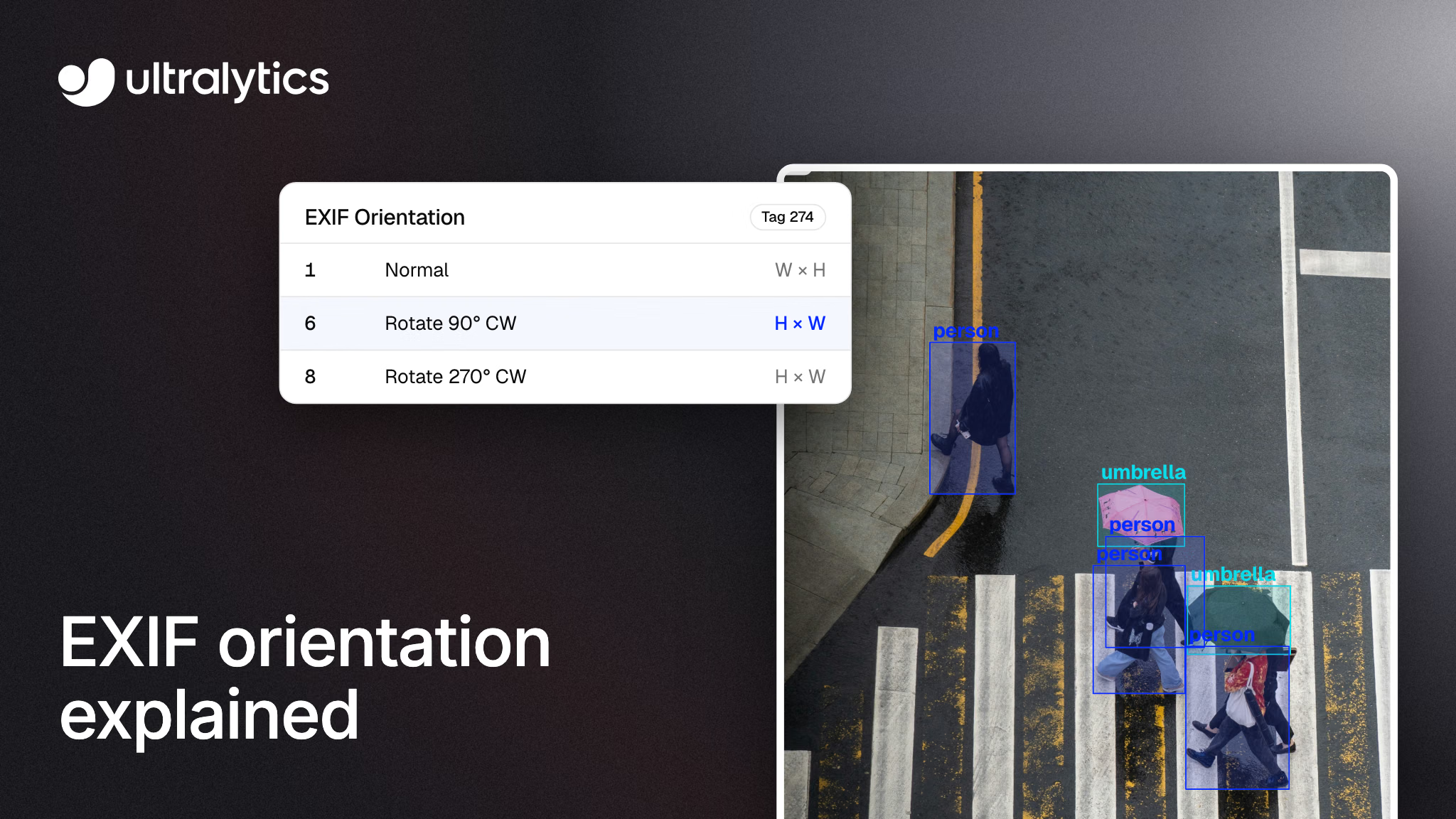
A photo looks upright in your gallery, upright in the browser and upright in your labeling tool. Then a training script reads it sideways, and the boxes you drew can land on the wrong part of the image. Nothing crashes. The model just learns from labels that no longer match their pixels.
Labels and pixels drift apart whenever two tools use different frames for the same file, and EXIF orientation is one way that happens: a small metadata tag that tells software how to turn an image for display, while the pixels stay as the camera stored them. Some readers apply the tag and some don't. This guide explains the tag, how it breaks data labeling and training, and how to audit a dataset for it. It also covers two things we just shipped: Ultralytics 8.4.214 now applies EXIF orientation consistently when it reads images, and Ultralytics Platform can now rotate an image and its annotations together for files whose pixels are simply sideways.
EXIF orientation is a display instruction, not a rotation#
A camera can save the pixels as its sensor read them and write an Orientation value into the file's EXIF metadata (tag 274, or 0x0112) instead of rotating the pixel grid itself. A viewer that honors the tag turns the image before showing it; one that ignores it shows the raw grid. Other devices rotate the pixel data before saving, so whether a given photo carries a tag depends on the device and the software that touched it since.
The tag takes one of eight values, listed in ExifTool's EXIF tag reference:
| Value | Meaning | Displayed width and height |
|---|---|---|
| 1 | Normal, no change | Same as stored |
| 2 | Mirror horizontal | Same as stored |
| 3 | Rotate 180° | Same as stored |
| 4 | Mirror vertical | Same as stored |
| 5 | Mirror horizontal and rotate 270° CW | Swapped |
| 6 | Rotate 90° CW | Swapped |
| 7 | Mirror horizontal and rotate 90° CW | Swapped |
| 8 | Rotate 270° CW | Swapped |
Two details matter for computer vision. Values 5 through 8 swap the displayed width and height, so a 4000 x 3000 stored image becomes 3000 x 4000 on screen. And values 2, 4, 5 and 7 include a mirror, so an image can look roughly upright while its text and left-right layout are reversed. A portrait photo tagged 6 is the classic sideways case.
Why sideways photos quietly break vision datasets#
Bounding boxes, polygons and keypoints are stored as coordinates relative to an image, and in the Ultralytics YOLO format those coordinates are normalized to the image's width and height. They only mean something if every tool agrees on which frame they refer to.
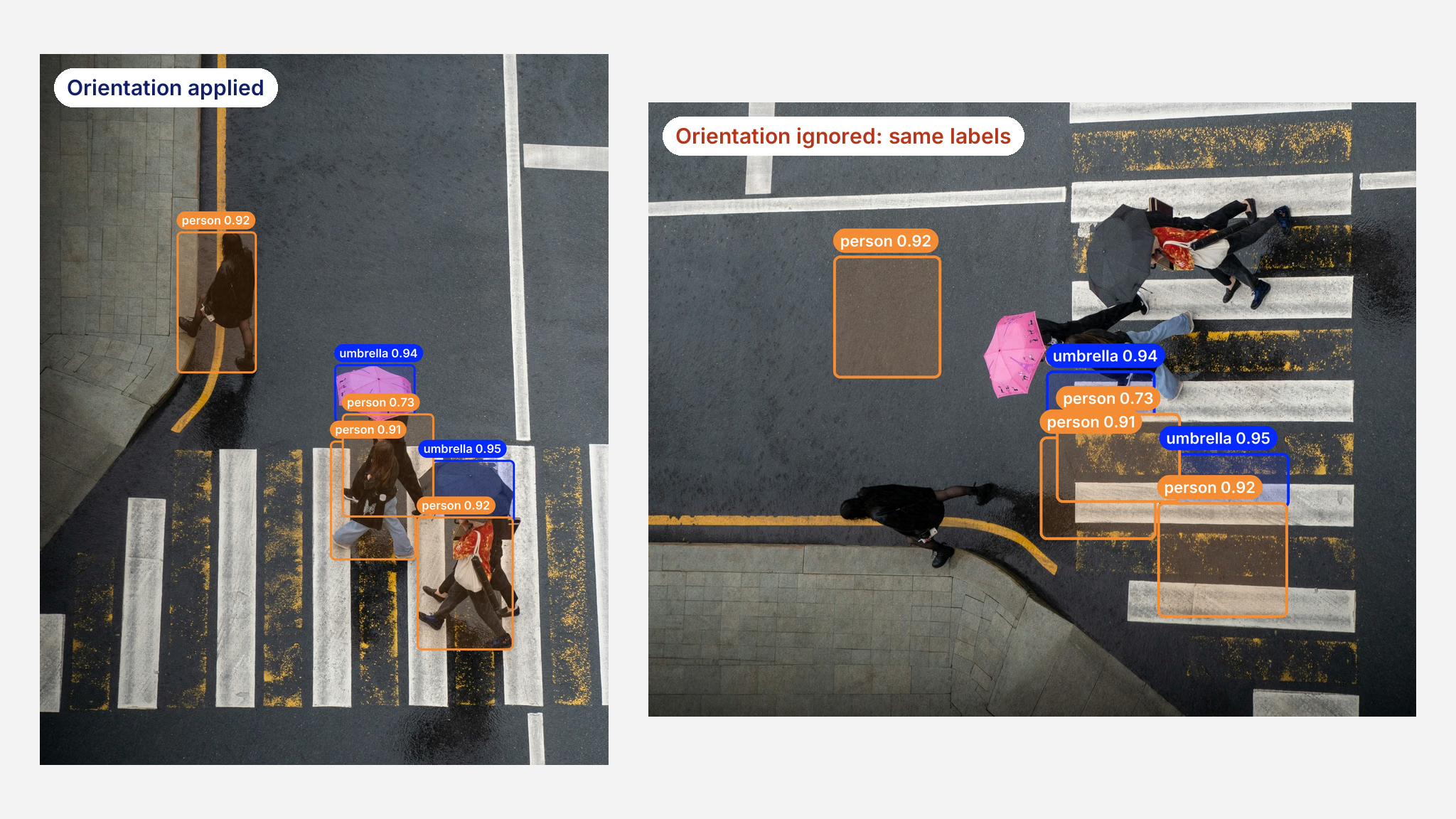
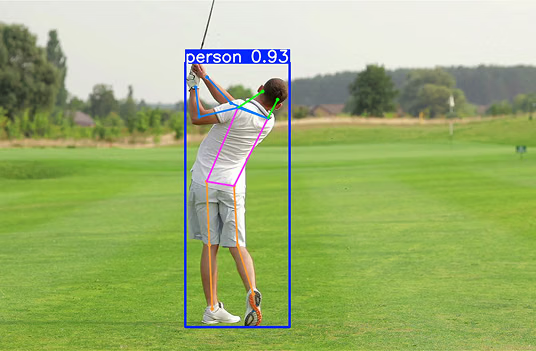
One JPEG with Orientation 6, read two ways. Left: orientation applied, with YOLO26x detections. Right: orientation ignored, with the same normalized labels placed on the stored pixels.
Here is how a dataset with tagged images can drift out of agreement:
- An annotator labels the upright view. If the browser or labeling tool applies the tag, the box around a person sits where the person appears on screen.
- A training loader reads the stored grid. If its decoder skips the tag, the same normalized box is placed on pixels turned 90 degrees, where it can cover the wrong object or nothing at all.
- Training runs anyway. Coordinates still fall between 0 and 1, so no format check fails. The model learns from mismatched pairs, which can hurt its predictions on real images. If the validation split shares the mismatch, its mean average precision can mislead you rather than flag the problem.
Mirrored orientations are harder to spot, because a flipped image can pass a quick visual check. They reflect text, and for pose estimation they move left and right body landmarks away from their labels.
The problem also hides well. A dataset built from phone uploads, field inspections or crowdsourced photos can mix tagged and untagged files, and only the images read in a different frame from their labels misalign. The damage looks like noisy labels rather than a pipeline bug.
The same file can read two ways in OpenCV#
If you read images with OpenCV, whether the tag is applied depends on how you call it. The OpenCV imread documentation states that EXIF orientation is applied unless IMREAD_IGNORE_ORIENTATION or IMREAD_UNCHANGED is passed. That second flag is easy to reach for: it is how you keep an alpha channel or extra bands.
When we audited the Ultralytics package, we found its read path depended on the flag, the format and the OpenCV release. Before PR #27168, our imread behaved like this for orientations 2 to 8:
| Read | Result before 8.4.214 |
|---|---|
JPEG, PNG or WebP read with IMREAD_UNCHANGED (datasets and models with channels other than 1 or 3) | As stored, on every OpenCV version |
| WebP with any flag, OpenCV before 5.0 | As stored |
predict("a.webp") vs. predict(Image.open("a.webp")), OpenCV before 5.0 | Two different frames |
| JPEG and PNG, color or grayscale | Upright |
Color and grayscale JPEG and PNG reads were already upright. The exposure was in datasets with channels other than 1 or 3, WebP files on OpenCV 4.x, and comparisons between predictions on a WebP path and on a PIL image. With channels: 4, for example, the cached image shape was already the upright one while the pixels were not, so tiles, rectangular batches and mask resizing used a transposed shape.
Ultralytics 8.4.214 applies EXIF orientation consistently#
As of 8.4.214, released November 15, 2026, imread applies EXIF orientation for color, grayscale and unchanged reads across supported formats and OpenCV versions, apart from the few edge cases listed below. The imread reference states the goal: labels and predictions share the frame viewers display. The detection dataset docs now say the same about label coordinates, so the convention is written down where dataset authors look.
How it works, in short:
- Consistent reads across paths. Dataset image loading and single image-path prediction go through
imreadinultralytics/utils/patches.py, and classification datasets and DOTA splitting now use it too. Image paths passed topredictas a list are opened with Pillow and EXIF-transposed, and PIL image inputs are EXIF-transposed too, so outside the edge cases below they produce the same upright frame. - Tags applied where OpenCV skips them. For unchanged reads, and for every WebP read, the image is decoded with
IMREAD_IGNORE_ORIENTATIONand the tag is then applied to the array, so the result doesn't depend on the OpenCV release. - The EXIF step checks file content. The tag is applied to JPEG, WebP and PNG data with an eXIf chunk, even under a mismatched extension such as a JPEG named
.webp. TIFF data is left to OpenCV's TIFF decoder, which orients it itself, and AVIF and HEIC go through Pillow'sexif_transpose. - Pillow only when needed. PNG chunks are scanned first, so Pillow is only asked when an eXIf chunk exists.
We validated the change on OpenCV 5.0.0, 4.12.0 and 4.7.0 with Pillow 13.0.0, comparing pixels against Pillow's exif_transpose. All eight orientations read upright for JPEG, PNG (RGB and RGBA) and WebP (RGB and RGBA) under color, grayscale and unchanged reads, 45 combinations in all, and untagged images decode to the same arrays as before.
A few edge cases keep the stored orientation: a JPEG saved with a .tif or .tiff extension (except for grayscale reads), JPEG and PNG reads where you deliberately pass IMREAD_IGNORE_ORIENTATION (WebP files are still turned upright), and, under Pillow's default pixel limit, unchanged JPEG or PNG reads and WebP reads of images above about 179 megapixels. For these, bake the orientation into the pixels before training (see the audit steps below).
The dataset cache version moved to 1.0.13, so label caches holding the old shapes rebuild once on your next run. One exception: for a PNG whose eXIf chunk comes after the image data, the pixels read upright but the cached shape can stay the stored one. Bake the orientation into those PNGs and rebuild the cache.
Rotate an image and its labels in Ultralytics Platform#
A better reader handles tagged files. It can't help when the pixels themselves are wrong: a scan fed in sideways, a photo exported upside down, or a tag stripped somewhere upstream so the stored grid is all that's left. Metadata can't tell you which way those images should face. They need a real rotation, and their labels need to turn with them.
Ultralytics Platform now does that in the dataset gallery's fullscreen viewer. With edit access, press R or the rotate button to turn the image and its annotations 90 degrees clockwise. Boxes, polygons and keypoints move with the pixels, so the annotations stay on the objects they describe.
How it treats your data:
- No cumulative degradation. Platform keeps the image as first stored and renders each turn from that original, so repeated turns don't degrade it, and turning back to upright restores the original.
- The turned pixels are what you get. Platform rotates the stored pixels rather than writing a rotation flag, so exported datasets carry no new field, and Download saves the full-size image turned as displayed.
Rotation isn't available for depth datasets, multispectral datasets, images stored as TIFF, or cloud storage and On Premise datasets.
Platform's upload normalization applies EXIF orientation. When the tag describes the file correctly, the image arrives upright, and values 5 to 8 swap its width and height to match. Use Rotate when an image still faces the wrong way.
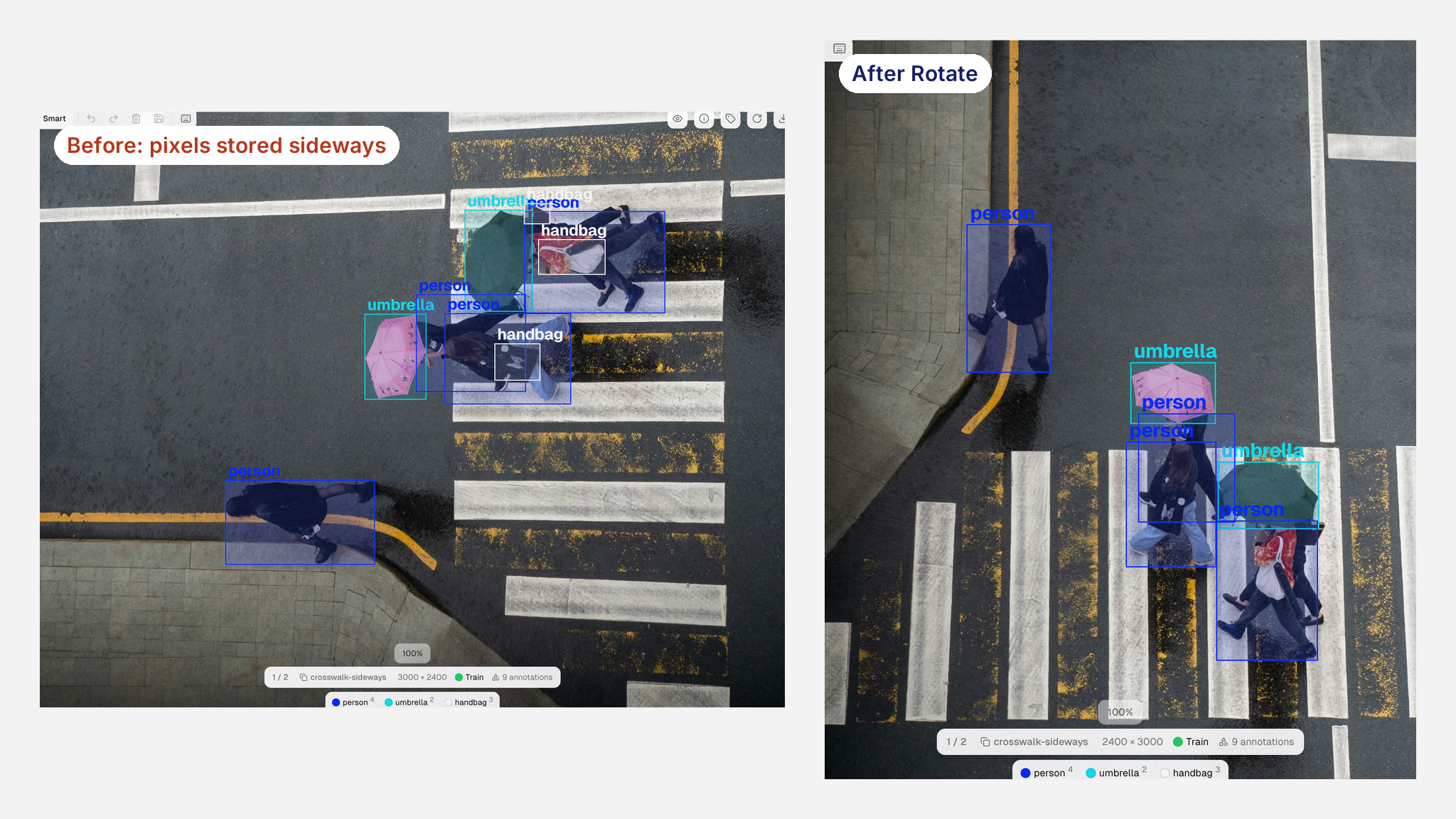
A sideways image in the Ultralytics Platform fullscreen viewer, before and after Rotate. The image goes from 3000 x 2400 to 2400 x 3000, and every annotation turns with it.
How to audit and fix EXIF orientation in your dataset#
Start by checking for tags. This script reports JPEG, PNG and WebP files in a folder whose Orientation tag is anything other than 1:
from pathlib import Path

from PIL import Image

for path in Path("datasets/my_data/images").rglob("*"):
    if path.suffix.lower() in {".jpg", ".jpeg", ".png", ".webp"}:
        with Image.open(path) as im:
            orientation = im.getexif().get(274, 1)  # 274 is the EXIF Orientation tag
        if orientation != 1:
            print(path, orientation)
A clean result means none of those files has an Orientation value other than 1. It doesn't catch files with a misleading extension, images whose stored pixels are sideways, or labels drawn in a different frame. Then confirm what Ultralytics will see; with 8.4.214 or later, imread returns the displayed frame, apart from the edge cases above:
import cv2

from ultralytics.utils.patches import imread

img = imread("datasets/my_data/images/train/photo.jpg", cv2.IMREAD_UNCHANGED)
print(img.shape)  # (height, width, channels) as viewers display it
From there, the fix depends on how the labels were made:
- Upgrade. Run
pip install -U ultralyticsto get 8.4.214 or later, so training, validation and prediction read tagged image files and PIL images in the displayed frame, subject to the edge cases above. NumPy arrays and tensors carry no EXIF tag, so make sure they're already oriented correctly before you pass them topredict. - Clear old image caches. If earlier runs wrote
.npyimage caches next to your images, delete those Ultralytics-generated files before checking or retraining, even if your next run usescache=False, because the loader can still pick up existing ones. Leave unrelated NumPy files alone; label caches rebuild on their own. - Check a few tagged images against their labels. Draw the labels on the upright image. If annotators worked in a tool that honors the tag, the boxes will fit.
- If labels were drawn on the stored grid, which can happen with scripts or tools that ignore the tag, relabel those images or transform the labels to the upright view. Rotating only the pixels just moves the mismatch.
- Fix images whose pixels face the wrong way with Platform's Rotate action, which turns the annotations with them, then retrain.
To make files look the same in every tool, and to cover most of the edge cases above, bake the orientation into the pixels with Pillow's ImageOps.exif_transpose and save a copy. Do that before labeling, or transform the labels too. Pillow warns above its default pixel limit and refuses images above twice that limit, about 179 megapixels. For trusted oversized images, raise Image.MAX_IMAGE_PIXELS before opening them.
For a broader pre-training checklist, the Academy lessons on dataset quality control and annotation quality cover the other checks worth running alongside this one.
Rotation augmentation doesn't fix an orientation mismatch#
It's tempting to assume random rotation during training makes orientation irrelevant. Data augmentation such as the degrees setting in YOLO augmentation rotates the image and its labels together, which keeps them aligned while teaching the model to handle tilted objects. A wrong EXIF read separates image and labels before augmentation ever runs, and rotating both afterward keeps them separated.
The same logic applies to tasks with a fixed reference direction. If your model reads text, as in our guide to OCR in Python with Ultralytics YOLO26, or tells left from right, a mirrored orientation changes the meaning of the image, not just its angle.
Who should audit for EXIF orientation#
Run the check if any of these describe your data:
- Phone or tablet photos, from field inspections, retail audits, insurance claims or crowdsourced collection.
- Mixed sources combined into one dataset, where some files may carry tags and others not.
- WebP datasets, or datasets with
channelsother than 1 or 3, trained on Ultralytics releases before 8.4.214. - Scanned documents, where pages can arrive sideways in their pixels and need a real turn.
Once the data is clean, you can annotate and train an Ultralytics YOLO26 model in the same workspace, with each label sitting on the pixels it describes. For more on keeping a dataset healthy in Platform, see smart dataset management with Ultralytics Platform.
Frequently asked questions
EXIF orientation is a metadata value from 1 to 8, stored in tag 274 of an image file, that tells software how to rotate or mirror the stored pixels for display. Value 1 means no change; 6 means rotate 90 degrees clockwise. The pixels themselves aren't rotated, so tools that ignore the tag show the image as stored, often sideways.
Often the file carries an Orientation tag that the receiving tool doesn't apply. Your phone and browser honor the tag, so the photo looks upright there, while a decoder that ignores it shows the stored grid. If the stored pixels are sideways and no tag corrects them, rotate the image itself.
Usually. OpenCV's
imreadapplies the tag unless you passIMREAD_IGNORE_ORIENTATIONorIMREAD_UNCHANGED, and releases before 5.0 also left WebP as stored. Since 8.4.214, Ultralytics' ownimreadapplies the tag for color, grayscale and unchanged reads on every OpenCV version we tested.Yes. From Ultralytics 8.4.214, image files and PIL images are read with their EXIF orientation applied, apart from a few edge cases such as a JPEG saved with a
.tifextension, and label coordinates refer to that same displayed frame. NumPy arrays and tensors have no EXIF tag, so they need to be oriented correctly before prediction.Open the image in the dataset's fullscreen viewer and press
Ror the rotate button; each press turns the image and its annotations 90 degrees clockwise. You need edit access, and rotation isn't available for depth, multispectral or TIFF images, or for cloud storage and On Premise datasets.
Written by
Lead Software Engineer · Ultralytics
Comments
Ask a question, share your results, or help someone else.