OCR in Python with Ultralytics YOLO26: read documents, photos and PDFs at any angle
Read text in images and PDF pages at any rotation with Ultralytics YOLO26-Text and PP-OCRv6 in a few lines of Python, on CPU or GPU, with optional TensorRT.
 Jing Qiu13 min read
Listen to this article
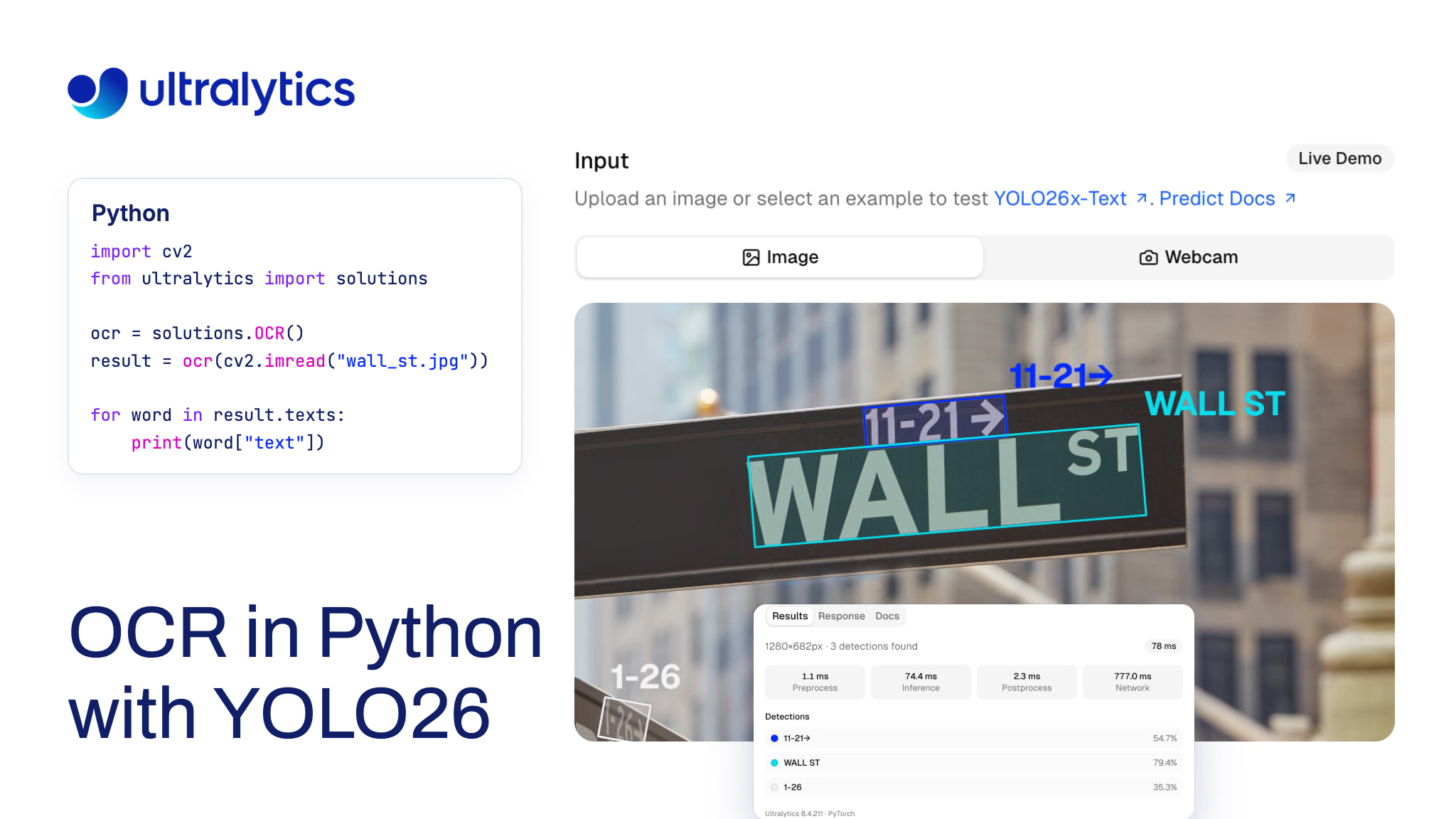
How do you run OCR in Python on a sideways scan, a phone photo of a sign or a page from a PDF, and get the words back in the order a person would read them? With the Ultralytics package, it takes one class: solutions.OCR() detects text with an Ultralytics YOLO26-Text model, reads each word with PaddleOCR's PP-OCRv6 recognizer and returns the recognized words line by line, at any page rotation, on CPU or GPU.
This pipeline is new. Ultralytics 8.4.210 rebuilt the OCR solution around PP-OCRv6 on ONNX Runtime with rotation handling and reading order, and 8.4.211 added an optional TensorRT recognizer. In our benchmark at image size 1280, the default setup scored a word F1 of 0.931 on six PDF pages and 0.722 on 80 HierText photos. On an RTX PRO 6000, a cached FP16 TensorRT engine read the 251 words detected in one photo in 82 ms, against 249 ms with ONNX Runtime on CUDA.
This guide covers how the pipeline works, how to run it on images and PDFs, how fast it runs and which languages it reads today. Ultralytics makes one of the OCR options compared below, so that comparison sticks to each project's documented capabilities.
YOLO26 OCR reads a page in two steps, then puts the words in order#
Optical character recognition (OCR) has two jobs: find the text, then read it. The Ultralytics OCR solution splits them cleanly:
- Detection: a YOLO26-Text model, an oriented bounding box detector, draws rotated boxes around text. It comes in n, s, m, l and x sizes, and the x model is the default.
- Recognition: PP-OCRv6 medium reads each crop. It runs on ONNX Runtime from the Ultralytics assets release, so you don't install PaddlePaddle. Crops that read as nothing are dropped.
- Ordering: words are grouped into lines and returned top to bottom and left to right, each tagged with its line number.
Each word comes back as a record with its text, its recognition confidence, the detector's confidence, a line number and a polygon in original-image coordinates. Because the two confidences are kept separate, you can send a word that was found confidently but read uncertainly to human review instead of trusting it.
The two stages stay independent. You can swap in a smaller detector, a detection or segmentation model of your own, or a different recognizer, and the rotation handling and reading order still work. You can try the same code path in the browser on our document processing page before installing anything.
Rotated and upside-down pages read in the right order#
The solution works out a page's rotation from the text it detects, so you don't deskew or rotate pages beforehand:
- Find the text direction. It averages the long-side angle of the detected boxes, weighted by how elongated each one is. Boxes less elongated than 2:1, such as single digits, abstain.
- Turn the page. It rotates the page so text runs left to right, crops each word upright and groups words into lines.
- Settle 0° or 180°. A box can't tell which way up its text is, so the solution reads the 8 widest words both ways and keeps the turn that reads more confidently. Upside-down text reads as low-confidence noise, which makes the right answer stand out.
When we turned 8 documents and screenshots, plus 12 photos, to 90°, 180° and 270°, word F1 was 0.925 on the documents and 0.654 on the photos. On a blank IRS Form 8802, the solution read 404, 401 and 399 words at 0°, 180° and 90°, with identical first lines. The previous version assumed every page was upright.
The defaults come from a benchmark, not a guess#
We set the main defaults by measuring them. The benchmark ran on an RTX PRO 6000 with the production Platform image, with uploads sent as JPEG at most 1280 pixels on the long side. It used 80 validation photos from Google's HierText dataset with their legible-word transcriptions, 6 PDF pages scored against their text layers (4 from an arXiv paper plus blank IRS Forms 1040 and 8802), a synthetic screenshot and a synthetic image. The metric is word-level F1 score, the balance of precision and recall, counting lowercase words of at least 2 alphanumeric characters.
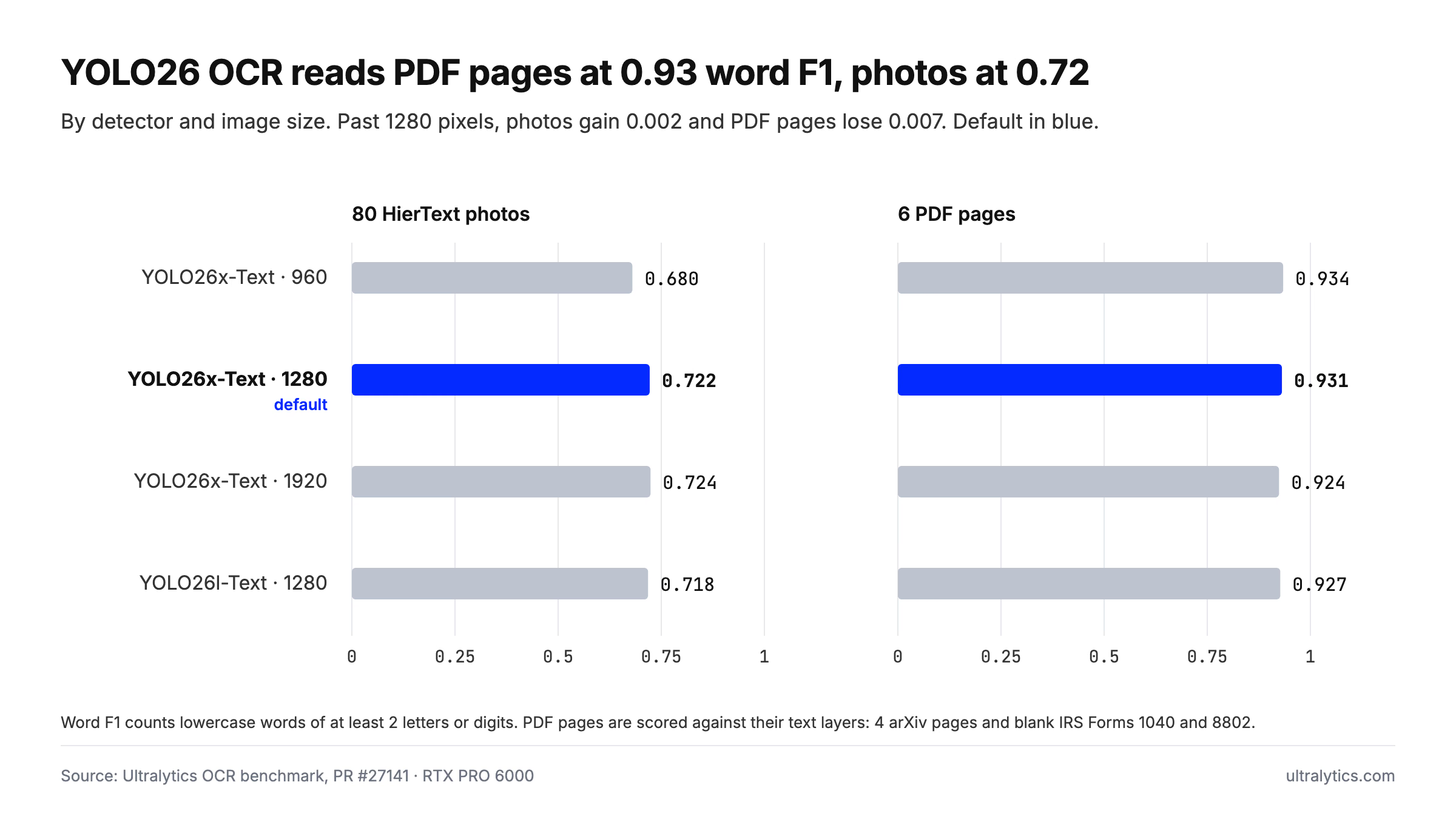
Word F1 of YOLO26-Text with PP-OCRv6 on 80 HierText photos and 6 PDF pages, by detector and image size, on an RTX PRO 6000.
Clean PDF pages read far better than scene-text photos at every setting, and three defaults follow from the numbers:
yolo26x-textatimgsz=1280. Dropping to 960 cost photos 0.042 F1, while 1920 added 0.002 on photos and lost 0.007 on PDF pages. Smaller images aren't enlarged to 1280; they run at their own size, rounded up to the model's 32-pixel stride.- Read word by word. Reading single words beat reading whole lines by 4 F1 points on photos.
max_det=1000. A dense document page holds more than the usual 300 detections.
If you need a lighter detector, YOLO26l-Text stayed within half a point of the x model on both sets.
How to run OCR in Python with YOLO26#
Install or upgrade with pip install -U "ultralytics>=8.4.211". The first OCR call downloads YOLO26x-Text and PP-OCRv6 and installs ONNX Runtime, using onnxruntime-gpu when CUDA is available. The default ONNX Runtime recognizer needs Python 3.11+ and ONNX Runtime 1.26+.
Read an image#
import cv2

from ultralytics import solutions

ocr = solutions.OCR()  # YOLO26x-Text at imgsz=1280 with PP-OCRv6
im0 = cv2.imread("receipt.jpg")
assert im0 is not None, "Image not found"
result = ocr(im0)
cv2.imwrite("receipt_ocr.jpg", result.plot_im)  # annotated image

for word in result.texts:
    print(word["line"], word["text"], round(word["confidence"], 2))
From the command line, yolo solutions ocr source="path/to/video.mp4" does the same on every frame. Each frame is read independently, without tracking.
Read a PDF#
The solution takes images, so render each PDF page first. PyMuPDF is one way to do it:
import cv2
import numpy as np
import pymupdf  # pip install pymupdf

from ultralytics import solutions

ocr = solutions.OCR()
for page in pymupdf.open("document.pdf"):
    pix = page.get_pixmap(dpi=200)
    rgb = np.frombuffer(pix.samples, np.uint8).reshape(pix.height, pix.width, pix.n)
    result = ocr(cv2.cvtColor(rgb, cv2.COLOR_RGB2BGR))

    lines = {}
    for word in result.texts:  # already in reading order
        lines.setdefault(word["line"], []).append(word["text"])
    print("\n".join(" ".join(words) for words in lines.values()))
Because result.texts is already sorted, rebuilding plain text is a dictionary and a join. The polygons let you go further, for example checking that an amount sits next to the word "Total".
Choose the model, device and recognizer#
- Smaller detector:
solutions.OCR(model="yolo26s-text.pt")loads a smaller, faster detector; check its accuracy on your own pages. All five sizes download automatically. - CPU or GPU: the recognizer runs on CUDA when a CUDA GPU is selected and ONNX Runtime's CUDA execution provider is available, and on CPU otherwise, so the same script runs on a laptop or a server.
- Your own recognizer: pass a function as
recognizer. It receives each BGR word crop and returns(text, confidence), and the solution keeps doing detection, rotation and ordering around it.
def recognize(crop):
    # Run any recognition model on the BGR word crop
    return "example", 0.95


ocr = solutions.OCR(recognizer=recognize)
TensorRT reads words 2.5x to 3x faster on dense photos#
In our dense-page GPU tests, recognition, not detection, took most of the time. An earlier optimization measured detection at about 11 ms of a 250 ms request, and the TensorRT pull request traced much of the remaining recognition time to 33 small batches dominated by launch overhead rather than compute. Ultralytics 8.4.211 adds one argument for this:
ocr = solutions.OCR(recognizer="tensorrt") # FP16 TensorRT engine on NVIDIA GPUsThe first run builds an FP16 TensorRT engine in about 30 seconds and caches it next to the PP-OCRv6 model, once per TensorRT version and GPU architecture. Later loads take 0.05 to 0.2 seconds. The release reports it as about 2.5x faster than ONNX Runtime on dense pages.
We timed read_words, the step after detection that crops, rotates, recognizes and orders the words, on four scene-text photos. On the three photos with 195 to 263 words, the FP16 engine was 2.5x to 3x faster than ONNX Runtime on CUDA; on a 48-word photo it was 1.4x faster:
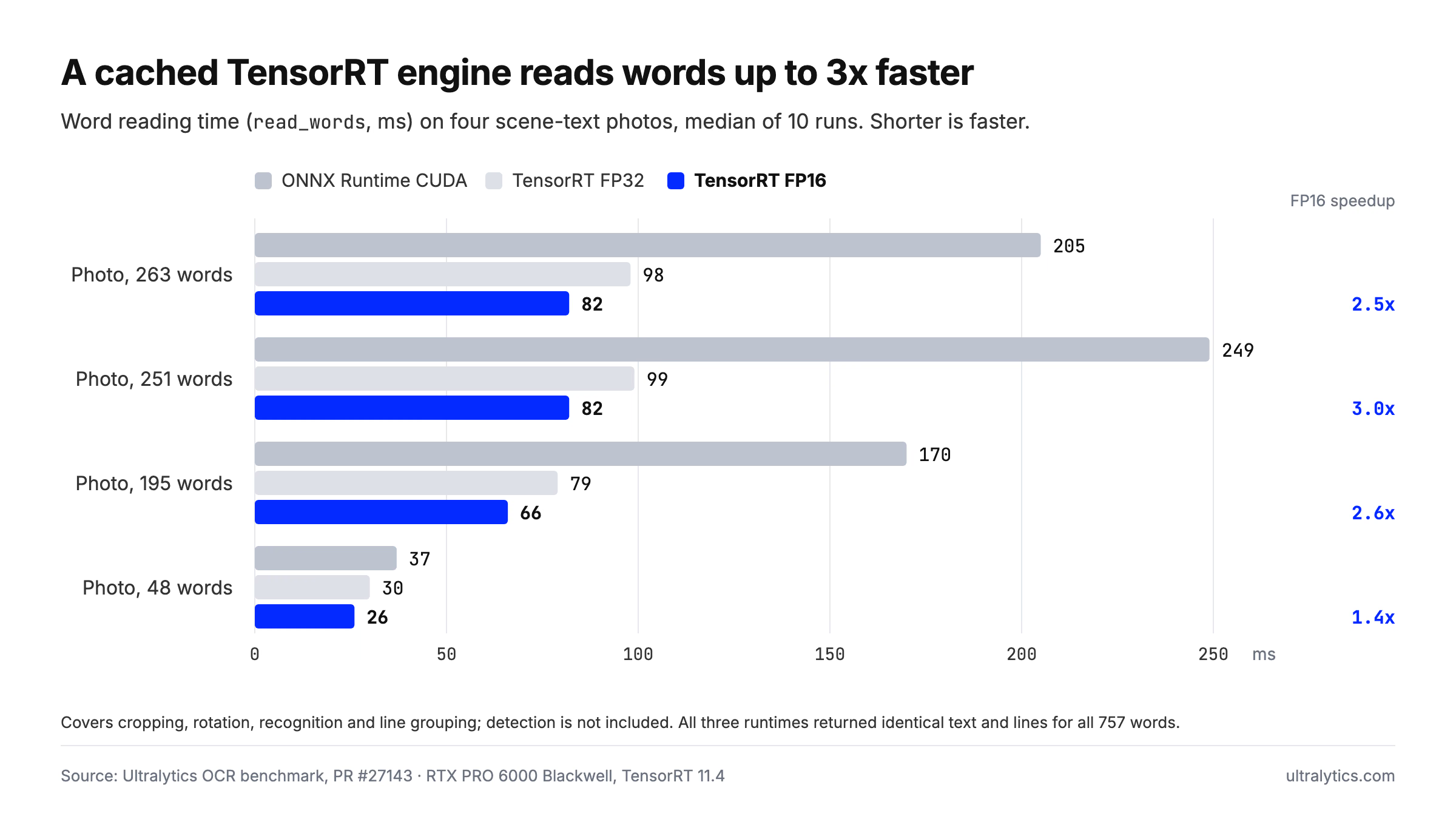
Word reading time on four scene-text photos with ONNX Runtime CUDA and FP32 and FP16 TensorRT engines, median of 10 runs on an RTX PRO 6000 Blackwell with TensorRT 11.4.
A full OCR call on a dense page dropped from 182 ms to 94 ms. On these four photos, the speed-up didn't change the output: for all 757 words, ONNX Runtime and both engines returned identical text and line grouping.
Keep the default recognizer="paddleocr" when you can't wait for a first build or aren't on NVIDIA hardware. It builds nothing and starts in about a second. Our ONNX vs TensorRT comparison covers the same trade-off for detection models, and the TensorRT integration guide covers setup.
Chinese, Japanese and Latin scripts are supported today#
PP-OCRv6 can only output characters from its built-in set of 18,708. The YOLO26-Text detector doesn't depend on that character set and still finds words in other scripts, but a word outside the set comes back as lookalike characters. Russian ТЕКСТ, for example, reads as "TEKCT", often with high confidence.
- Supported: Simplified and Traditional Chinese (about 15,600 CJK characters), Japanese (hiragana, katakana and kanji), and Latin-script languages including English, French, German, Spanish, Portuguese, Italian, Dutch, Swedish, Finnish, Danish, Norwegian, Polish, Czech, Hungarian, Romanian, Turkish, Croatian, Indonesian and Malay. Every letter and accented letter is covered except German capital ẞ and Spanish ¡.
- Partial: Vietnamese, where most toned vowels are missing, and Greek, where only base letters are covered.
- Not supported yet: Cyrillic, Korean (Hangul), Arabic, Hebrew, Devanagari and Thai.
For an unsupported script, keep the YOLO26-Text detector and pass a recognizer trained for that script as recognizer. The full coverage table is in the supported languages section of the OCR guide.
Python OCR libraries compared by documented capabilities#
There is no single best OCR model; the right one depends on your pages, your languages and where the code runs. The table compares documented capabilities, not measured results, from each project's public pages as checked on November 12, 2026. Options are listed alphabetically.
| Option | Runtime | Rotated text | Languages, as documented | Output |
|---|---|---|---|---|
| EasyOCR | PyTorch | rotation_info tries 90°, 180° and 270° per text box | 80+, including Cyrillic, Arabic, Devanagari, Korean and Thai | Boxes, text and confidence |
| PaddleOCR | PaddlePaddle | Optional orientation classification | 100+ (PP-OCRv6 covers 50 in one model) | Boxes, text and confidence |
| Tesseract (pytesseract) | Native binary, CPU | Orientation and script detection (image_to_osd); rotate the image before reading | 100+ | Text, with optional word data |
| Ultralytics YOLO26 OCR | PyTorch detector; recognizer on ONNX Runtime, or TensorRT on NVIDIA GPUs | Page rotation estimated from detected text, 0° vs 180° settled automatically | Chinese, Japanese, Latin scripts; others through a custom recognizer | Words in reading order with line numbers, polygons and separate detection and recognition confidences |
EasyOCR's documentation, the PaddleOCR repository, the Tesseract documentation and pytesseract are the places to check their current options. For background on how these engines work, see our overview of popular open-source OCR models.
Where Ultralytics fits#
Ultralytics YOLO26 OCR is built for Python developers who need text out of mixed inputs, such as scanned forms, PDF pages, screenshots and photos of labels and signs, with words in reading order and coordinates they can check. It's a good fit when pages arrive at unpredictable angles, when you want OCR on your own machines, or when you already run Ultralytics YOLO26 models and want OCR in the same package. Add recognizer="tensorrt" for high volumes on NVIDIA GPUs.
The detector is an ordinary Ultralytics model, so it trains, validates and exports like any other. The YOLO26-Text project on Ultralytics Platform holds all five sizes, n to x, where you can compare their training curves and clone the project to start from them.
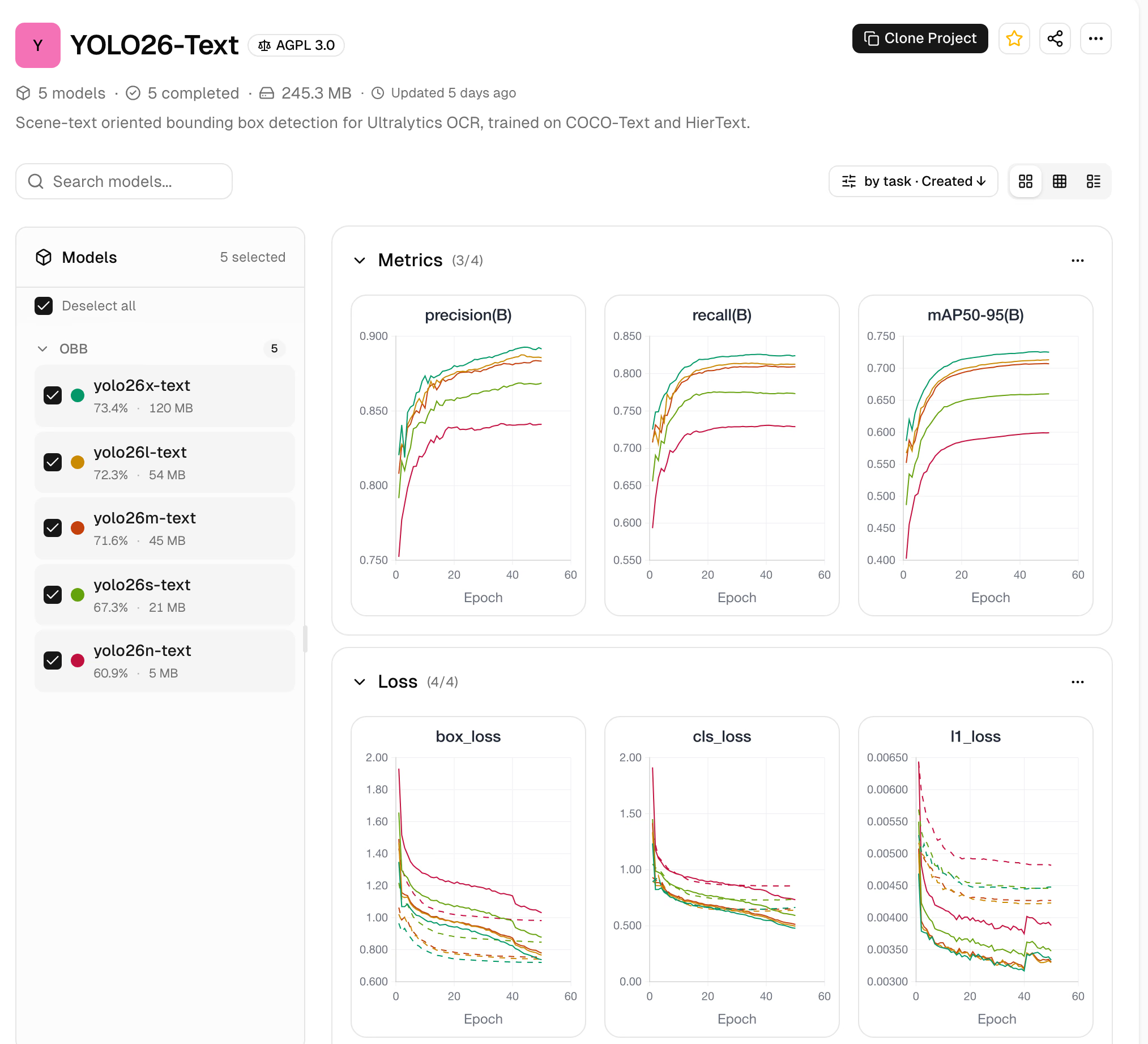
The YOLO26-Text project on Ultralytics Platform: all five detector sizes with their precision, recall, mAP50-95 and loss curves during training.
To adapt it to your documents, start from the Scene Text OBB dataset, which combines COCO-Text and HierText into 65,325 images with about 1.29 million word polygons.
Its limits are specific:
- Scripts. The default recognizer doesn't read Cyrillic, Korean, Arabic, Hebrew, Devanagari or Thai yet. Pair the detector with your own recognizer, or choose an engine that covers them.
- Mixed directions. The solution turns the whole page by its dominant text direction, so text running in several directions on one page, such as a vertical margin note, can read less well.
- Export. The recognizer isn't embedded in an exported detector file, so deploy the detector and the recognition runtime side by side, or keep the Python solution as the glue.
- Rust. Ultralytics Inference reads scene text in Rust with the same PP-OCRv6 recognizer through
ultralytics-inference predict --ocr, but it handles orientation with a classifier rather than the Python solution's page-rotation step. - Privacy. The Python solution runs on your own hardware, so pages don't have to leave your machines; the browser demo uploads pages for inference. For fields that must not be read, cover known regions with an opaque mask before OCR runs.
For forms and contracts, a custom YOLO model can find fields, tables, signatures and stamps first, so you only read the regions you need. The Signature dataset on Ultralytics Platform and our guide to smart document analysis are good starting points, and Ultralytics Platform lets you label pages and train that model in one place. To see OCR on your own page first, drop an image or PDF into the live OCR demo.
Frequently asked questions
Install the Ultralytics package with
pip install -U "ultralytics>=8.4.211", then callsolutions.OCR()on an image loaded with OpenCV. It returns the recognized words with their text, confidence, line number and polygon in reading order. The first run downloads the YOLO26-Text detector and the PP-OCRv6 recognizer automatically.It depends on your documents, languages and hardware; our overview of popular open-source OCR models compares the main options. In our benchmark at image size 1280 on an RTX PRO 6000, YOLO26x-Text with PP-OCRv6 scored a word F1 of 0.931 on six PDF pages and 0.722 on 80 HierText photos, and it reads pages at any rotation. For scripts it doesn't cover yet, such as Cyrillic or Korean, use a recognizer trained for that script.
A YOLO model detects text but doesn't read it. Ultralytics YOLO26-Text detects text as oriented boxes, and the OCR solution passes each crop to the PP-OCRv6 recognizer, so together they perform full OCR in one call.
Yes. Render each PDF page to an image, for example with PyMuPDF's
get_pixmap, convert it to BGR and pass it tosolutions.OCR(). In the browser, the demo and the Platform Predict tab accept a PDF and read its first page.Yes. PP-OCRv6 runs on ONNX Runtime on CPU or CUDA GPUs, and the same script works on both. The optional TensorRT recognizer needs an NVIDIA GPU.
Not yet with the default recognizer. PP-OCRv6 covers Chinese, Japanese and Latin-script languages, but not Cyrillic, Hangul, Arabic, Hebrew, Devanagari or Thai. You can keep the YOLO26-Text detector and pass a recognizer trained for that script.
Written by
Senior Machine Learning Engineer · Ultralytics
Comments
Ask a question, share your results, or help someone else.