How to Train YOLO on Amazon S3 Data and Deploy a Hosted API with Ultralytics Platform
Train Ultralytics YOLO26 on images in your Amazon S3 bucket and deploy it as a hosted API with Ultralytics Platform, step by step, compared with SageMaker.
 Miles Deans12 min read
Listen to this article
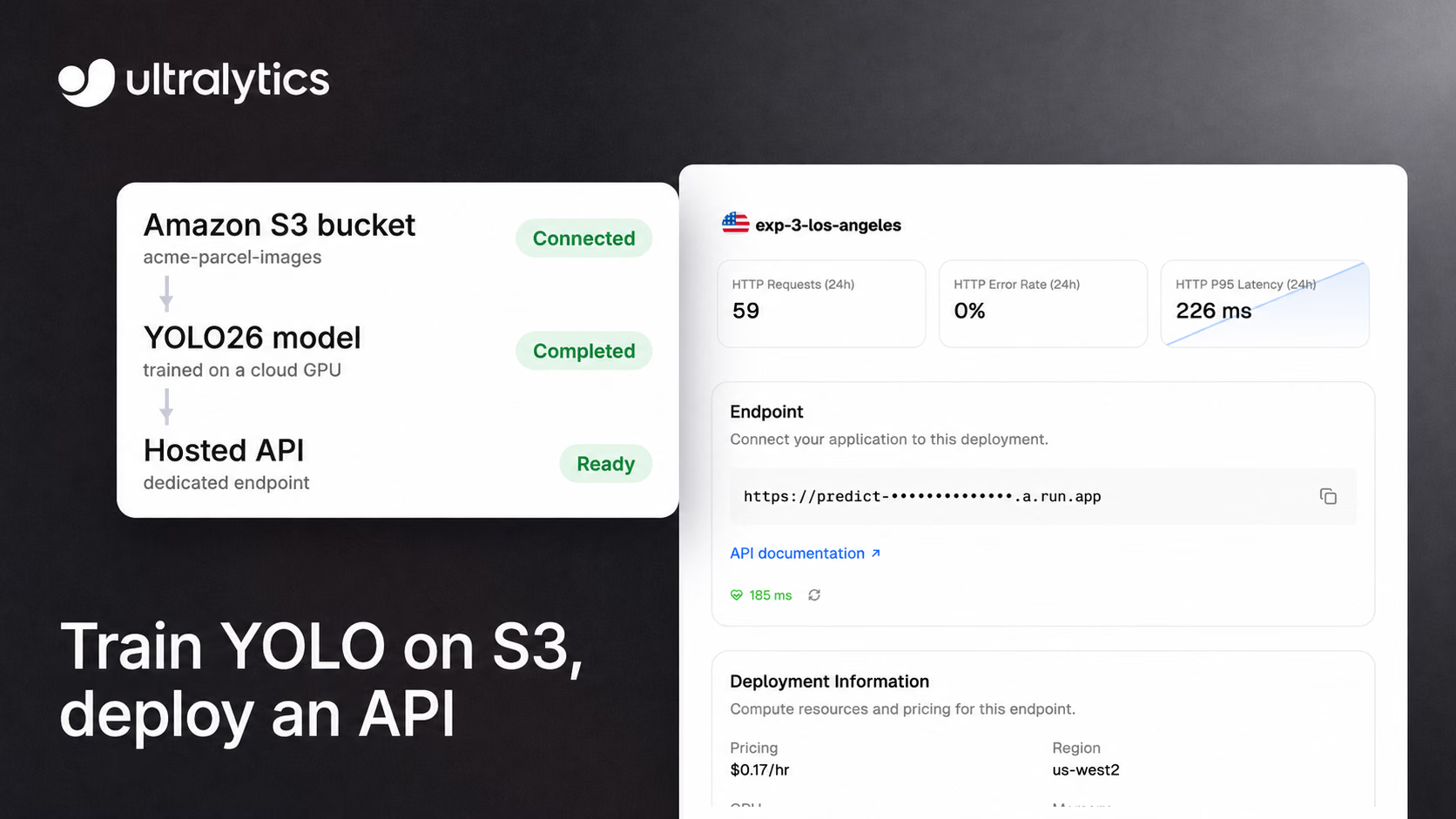
If your images already live in an Amazon S3 bucket, you can train an Ultralytics YOLO model on them and deploy it as a hosted API without uploading a second copy of the dataset. Ultralytics Platform indexes the bucket in place, lets you label and train YOLO26 on a cloud GPU, and deploys the trained model to a dedicated endpoint you call over HTTPS. This guide walks through each step, from the IAM policy to your first prediction, and compares the workflow with Amazon SageMaker, Google Vertex AI and Azure Machine Learning.
The same flow works for Google Cloud Storage and Azure Blob Storage, with a service account JSON key or an account access-key connection string in place of the AWS access key.
How the workflow fits together#
The pipeline has five stages. Your original images stay in your bucket, and cloud training works on temporary copies for the duration of a run:
- Connect an S3 bucket with a read-only IAM user.
- Index a folder as a Platform dataset. Platform reads image dimensions and any YOLO labels it finds, and doesn't store a second copy of the images.
- Label images in the browser, or keep the YOLO labels already in the bucket.
- Train a YOLO26 model on a cloud GPU. Training uses temporary copies of the images for the duration of the run.
- Deploy the model to a dedicated endpoint in one of 42 regions and send it images with an API key.
Detection, segmentation, pose and oriented bounding box (OBB) datasets are recognized from the shape of their labels, so the same steps apply to each computer vision task.
Before you start: plans, permissions and data boundaries#
You need three things:
- A Pro or Enterprise workspace. Amazon S3, Google Cloud Storage and Azure Blob Storage datasets require a Pro or Enterprise plan. Pro costs $29 per seat per month and includes $30 of credit per seat each month for metered compute such as cloud training.
- The workspace admin or owner role, which is needed to connect cloud storage.
- An AWS IAM user that can list and read the bucket.
It helps to know what leaves the bucket before you connect it. Platform streams originals on demand for browsing and annotation, and indexed images don't count against your Platform storage quota. Each connection has an AI features switch, on by default. While it's on, Ultralytics GPUs can read images for annotation, similar-image search and cloud training. External AI providers may also process images for paid annotation models using your workspace's provider key, and for image generation when write access is enabled. Cloud training uses temporary copies during a run; similar-image search retains embeddings until the images leave Platform. Turn it off and no new AI work starts (work already running finishes), while manual annotation and local training keep working. Platform never modifies or deletes your objects.
Step 1: Create a read-only IAM user#
In the AWS console, go to IAM > Users, create a user with no console access, and attach a policy that grants list and read access to the bucket:
{
    "Version": "2012-10-17",
    "Statement": [
        { "Effect": "Allow", "Action": "s3:ListAllMyBuckets", "Resource": "*" },
        {
            "Effect": "Allow",
            "Action": ["s3:ListBucket", "s3:GetObject"],
            "Resource": ["arn:aws:s3:::my-bucket", "arn:aws:s3:::my-bucket/*"]
        }
    ]
}
s3:ListAllMyBuckets is optional. It lets Platform discover your buckets so you don't have to type their names.
Then open the user's Security credentials tab and create an access key. Platform needs a long-lived IAM user key: it rejects temporary AWS STS credentials, including role session credentials and IAM Identity Center keys, because they would expire while the dataset is still connected. Use a dedicated user for this, never root credentials. Platform encrypts the key at rest with AES-256-GCM and never exposes it to training workloads, and you can revoke access at any time by deactivating the key in IAM.
Step 2: Connect the bucket to Ultralytics Platform#
- In Platform, go to Settings > Integrations and select Amazon S3.
- Enter the access key ID, the secret access key and the bucket region, for example
us-east-1. - Click Find available buckets and select the buckets to connect, or type a bucket name if the policy doesn't allow discovery.
- Click Connect. Platform checks that it can list and read each bucket before saving anything.
A connection reads buckets in one region, so connect once per region if your data is spread across several. The Amazon S3 integration guide covers the optional write permission used for image generation.
Step 3: Create a dataset from the bucket#
Click New Dataset, open the Cloud tab, pick the bucket, browse to the folder with your data and create the dataset. Platform lists the folder once and indexes what it finds:
- Images:
.jpg,.jpeg,.png,.webpand.avifobjects. - Labels: YOLO
.txtfiles, matched by the standardimages/tolabels/layout or as files next to each image. - Classes: a
data.yamlfile supplies class names, as in a normal YOLO dataset. - Splits:
train,valandtestfolder names assign splits automatically.
A single import indexes up to 500,000 objects, so split larger buckets across several datasets. Treat indexed objects as immutable: each image is pinned to its S3 object ETag, and Platform stops serving an image that has been overwritten. To add data later, upload new objects and create a new dataset, since the index is built once when the dataset is created.
Step 4: Label or check the images#
Open the dataset to review the imported labels in the annotation editor. If the bucket has no labels yet, you can draw boxes and masks by hand or, with AI features on, use smart annotation (SAM for detection, segmentation and OBB, YOLO for pose) and auto-annotation to speed things up. Labels are stored in Platform, and your bucket objects stay unchanged.
Step 5: Train YOLO26 on a cloud GPU#
Click New Model on the dataset or a project, pick a base model and start a cloud run:
- Base model: choose an official Ultralytics model (YOLO26 is recommended) or one of your own models to fine-tune. Only models compatible with the dataset's task are listed.
- Parameters: set epochs, image size and batch size, or keep the defaults.
- GPU: pick a GPU from Ultralytics Cloud. The dialog shows the hourly rate and estimates the run's duration and total cost before you start. Our guide to choosing a cloud GPU helps with the trade-off.
Metrics, console output and system charts stream to the browser while the run is active, and checkpoints are saved automatically. When training finishes, the model page shows its metrics and, when validation results are available, a detailed analysis such as a confusion matrix.
Step 6: Deploy the model as a hosted API#
Open the model's Deploy tab. A map and a table list 42 regions, sorted by measured latency from your location. Click Deploy in the region you want, review the CPU, memory and price, and click Create Deployment.
The size you choose decides how you're billed:
- Default size (1 vCPU, 2 GiB): free, and scales to zero when idle.
- Custom sizes (up to 8 vCPU and 32 GiB): keep one warm instance and are charged at the displayed regional hourly rate from readiness until you stop the endpoint, including idle time.
Each dedicated endpoint is a single-tenant service with its own URL and monitoring, and it's bound to one API key from your workspace. Free workspaces can run 3 deployments, Pro 10 and Enterprise unlimited. For when a dedicated endpoint is the better choice than shared inference, see our guide to dedicated vs shared inference.
Step 7: Call the endpoint#
Install Requests with python -m pip install requests and save an image as image.jpg. Replace the example URL with your deployment's copied URL followed by /predict, and replace YOUR_API_KEY with the key bound to that deployment:
import requests

url = "https://YOUR_DEPLOYMENT_URL.run.app/predict"
headers = {"Authorization": "Bearer YOUR_API_KEY"}
data = {"conf": 0.25, "iou": 0.5, "imgsz": 640}

with open("image.jpg", "rb") as f:
    response = requests.post(url, headers=headers, data=data, files={"file": f})

print(response.json())
The same request with cURL:
curl -X POST "https://YOUR_DEPLOYMENT_URL.run.app/predict" \
  -H "Authorization: Bearer YOUR_API_KEY" \
  -F "file=@image.jpg" \
  -F "conf=0.25" \
  -F "iou=0.5" \
  -F "imgsz=640"
Each endpoint also serves an interactive API reference at /docs and a /health check. Direct requests skip the Platform API rate limit, but one instance serves each endpoint: requests that can't be served promptly get a 429 with a Retry-After header, and request bodies are limited to 32 MB. Once the endpoint is live, you can monitor its requests, errors and latency from the deployment page.
Costs, limits and security at a glance#
| Item | What to expect |
|---|---|
| Plan | Pro ($29 per seat per month) or Enterprise for S3, Google Cloud Storage and Azure Blob datasets |
| Storage | Indexed images stay in your bucket and don't use Platform storage quota |
| Training | Billed by GPU time from credits; the dialog estimates the cost before you start |
| Endpoint | Default size free with scale-to-zero; custom sizes billed hourly while running |
| Import size | Up to 500,000 objects per import |
| Credentials | Long-lived IAM user key, encrypted at rest, never exposed to training workloads |
| Not available on S3 datasets | Dataset cloning, version snapshots, face blurring, pasting images from other datasets |
Ultralytics Platform vs SageMaker, Vertex AI and Azure ML#
General-purpose cloud ML platforms can also train on data in their own storage and serve the model. The storage and serving columns below come from each platform's documentation; the last column is our assessment.
| Platform | Where training data lives | Serving options | Suggested fit (our assessment) |
|---|---|---|---|
| Ultralytics Platform with Ultralytics YOLO | Indexed in place from S3, Google Cloud Storage or Azure Blob | Dedicated single-instance endpoints in 42 regions; scale-to-zero on the default size | Teams that want YOLO detection, segmentation, pose or OBB from bucket to API without writing training or serving code |
| Amazon SageMaker AI | Training jobs read from Amazon S3, Amazon EFS or Amazon FSx for Lustre | Real-time endpoints with autoscaling, serverless and asynchronous inference | Teams already running ML pipelines in AWS who want to choose their own containers and serving options |
| Google Vertex AI | Serverless training jobs mount accessible Cloud Storage buckets under /gcs/ | Managed endpoints for online inference | Teams standardized on Google Cloud data and tooling |
| Azure Machine Learning | Datastores reference existing Azure storage, such as Blob Storage | Managed online endpoints for real-time inference | Teams standardized on Azure |
SageMaker's training data documentation lists S3, EFS and FSx for Lustre as sources with streaming and download input modes. Its serverless inference manages scaling for you and suits traffic with idle periods that can tolerate cold starts, and you can use a SageMaker-provided container or bring your own. Vertex AI runs custom training from a Python application on a prebuilt container or from a custom container, and Azure Machine Learning connects to existing Azure storage through datastores and serves models from managed online endpoints. That breadth is the strength of a general-purpose platform. Our assessment is that a custom YOLO workflow requires more configuration; container requirements depend on the selected training and serving options. If you want to stay in AWS, our SageMaker deployment guide shows how to serve a YOLO model there.
Ultralytics Platform is narrower by design. It's built around Ultralytics YOLO models, so the steps above replace the training script and serving container. It's a weaker fit if your organization requires temporary STS credentials for every integration, or if one endpoint must scale across many instances under heavy concurrent load. If you're still deciding where inference should run, our cloud vs self-hosted guide compares cost, latency and data control.
Frequently asked questions
Ultralytics Platform connects an S3 bucket, indexes the images in place, trains YOLO26 on a cloud GPU and deploys the model to a dedicated HTTPS endpoint. Amazon SageMaker AI also trains from S3 and offers real-time, serverless and asynchronous inference, with SageMaker-provided or custom containers depending on the serving option. Google Vertex AI and Azure Machine Learning offer similar workflows built around their own storage, Cloud Storage and Azure storage, rather than an existing S3 bucket.
Platform doesn't keep a second copy of your dataset: it indexes the images and streams originals on demand. With AI features on, cloud training uses temporary copies outside your bucket for the duration of a run, and similar-image search keeps an embedding of each image. Platform never modifies or deletes your objects.
Not at the moment. Platform requires a long-lived access key from a dedicated IAM user and rejects STS credentials, because they expire while the dataset is connected. Scope the user to list and read only, and deactivate the key in IAM to revoke access.
S3 datasets need a Pro ($29 per seat per month, with $30 of monthly credit per seat) or Enterprise plan. Training is billed by GPU time, and the training dialog estimates the cost before you start. The default endpoint size is free and scales to zero; custom sizes are billed per hour while running.
Yes. Google Cloud Storage connects with a service account JSON key and the Storage Object Viewer role, and Azure Blob Storage connects with an HTTPS account access-key connection string (SAS-token strings aren't accepted). The dataset, training and deployment steps are the same.
A dataset is indexed once when it's created, so new objects aren't picked up automatically. Add new objects rather than overwriting existing ones, then create a new dataset that includes them, and train or fine-tune again.
Yes. Download the weights or export the model to formats such as ONNX, TensorRT and CoreML from the model page, then run it on your own servers or edge devices with the Ultralytics Python package.
Written by
Comments
Ask a question, share your results, or help someone else.